---
updatedAt: 2026-03-02T11:14:09.000Z
---
# Android SDK Quick Start
# ENGAGE® Android SDK Quick Start Guide
The ENGAGE Android SDK is a low-effort integration that will enable Android applications to receive ENGAGE content and deliver an enhanced calling experience for consumers. This guide provides detailed instructions to integrate the ENGAGE SDK 4.0.6 into an Android application.
## Step 1. Requirements
* ENGAGE App ID, see [Pre-Integration Steps](https://developer.firstorion.com/firstorion-public/docs/pre-integration-steps)
* ENGAGE configuration file, see [Pre-Integration Steps](https://developer.firstorion.com/firstorion-public/docs/pre-integration-steps)
* First Orion Artifactory Credentials, see [Pre-Integration Steps](https://developer.firstorion.com/firstorion-public/docs/pre-integration-steps)
* [Android Studio](https://developer.android.com/studio) **Recommend using latest stable build**
* An Android device or emulator (API Level 24 or newer) with *"Google Play Store (Services)"* installed
* Android Project, see [Host App Requirements](https://developer.firstorion.com/firstorion-public/docs/host-app-requirements)
## Step 2. Setting Artifactory Credentials
When setting the First Orion Artifactory credentials, best practice is to set the values in a properties file, which will be ignored by the host app source code management and will not be checked into a source code repository.
**2.1** Create Properties File\
In the root of the project, create a file named `artifactory.properties`
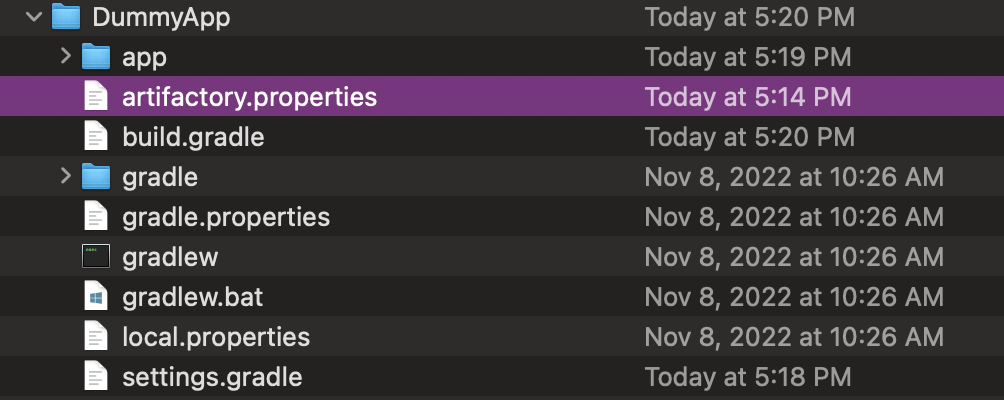
**2.2** Insert Credentials\
Inside the 'artifactory.properties' file, add the proper credentials for First Orion's Artifactory. Credentials should have been supplied in the [Pre-Integration Steps](https://developer.firstorion.com/firstorion-public/docs/pre-integration-steps).
```
username=
password=
```
The build.gradle file will be responsible for reading the credentials to securely connect to the First Orion artifact repository.
> 🚧 WARNING
>
> It is unsafe to store the artifactory.properties containing credentials file into a source code repository.
## Step 3. Import ENGAGE SDK
The ENGAGE Android SDK is published in the First Orion artifact repository. Credentials to access the repository will be provided by First Orion before integration efforts begin. See [Pre-Integration Steps](https://developer.firstorion.com/firstorion-public/docs/pre-integration-steps)
> ❗️ These credentials:
>
> * should be securely stored
> * should never be checked into a source code repository
> * should be appropriately retrieved during integration and app build processes
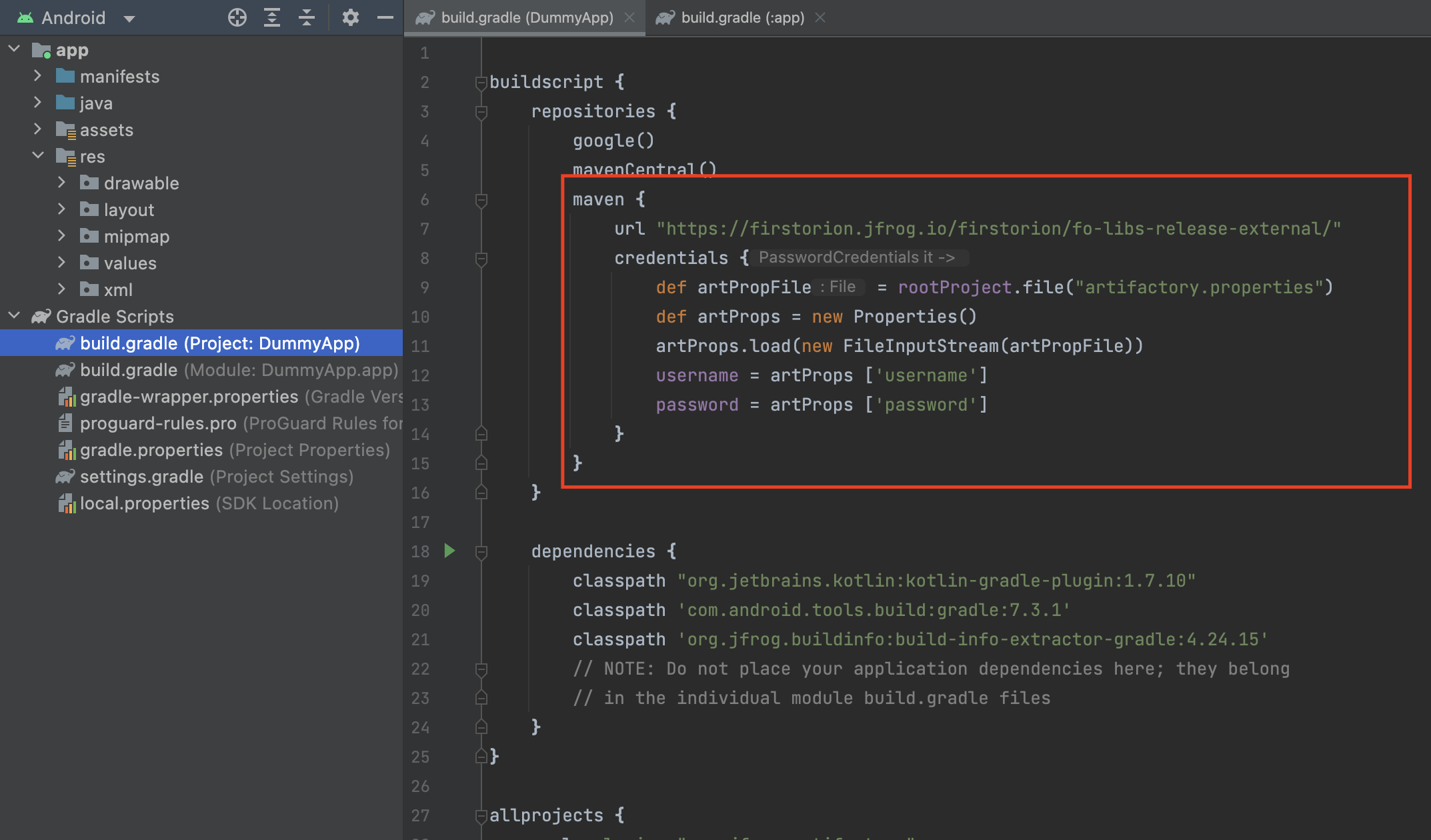
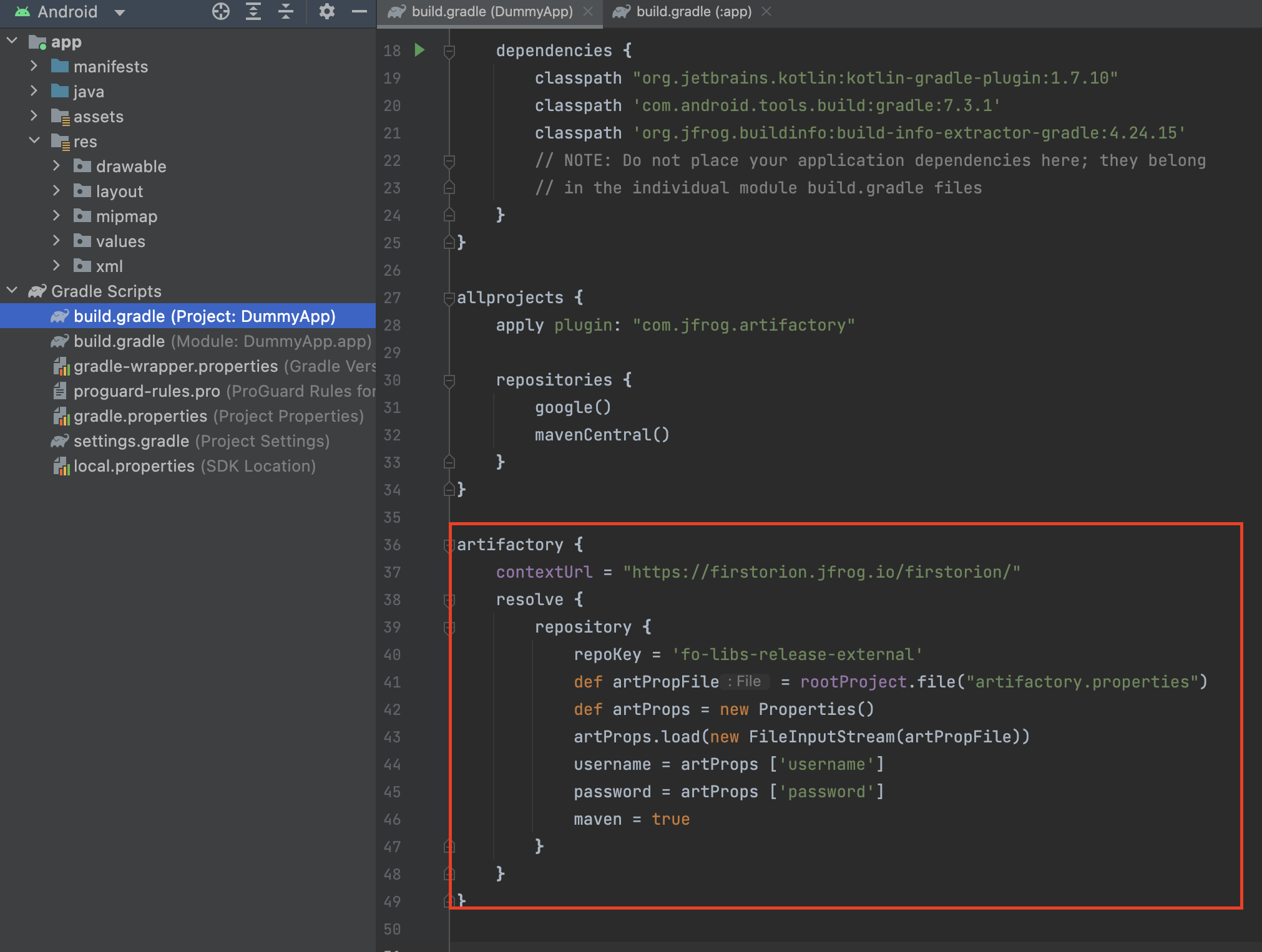
**3.1** Edit the Project-level `build.gradle` file\
Add the following to the `buildscript.repositories{}` closure:
```groovy
repositories {
. . .
maven {
url "https://firstorion.jfrog.io/firstorion/fo-libs-release-external/"
credentials {
def artPropFile = rootProject.file("artifactory.properties")
def artProps = new Properties()
artProps.load(new FileInputStream(artPropFile))
username = artProps ['username']
password = artProps ['password']
}
}
}
```
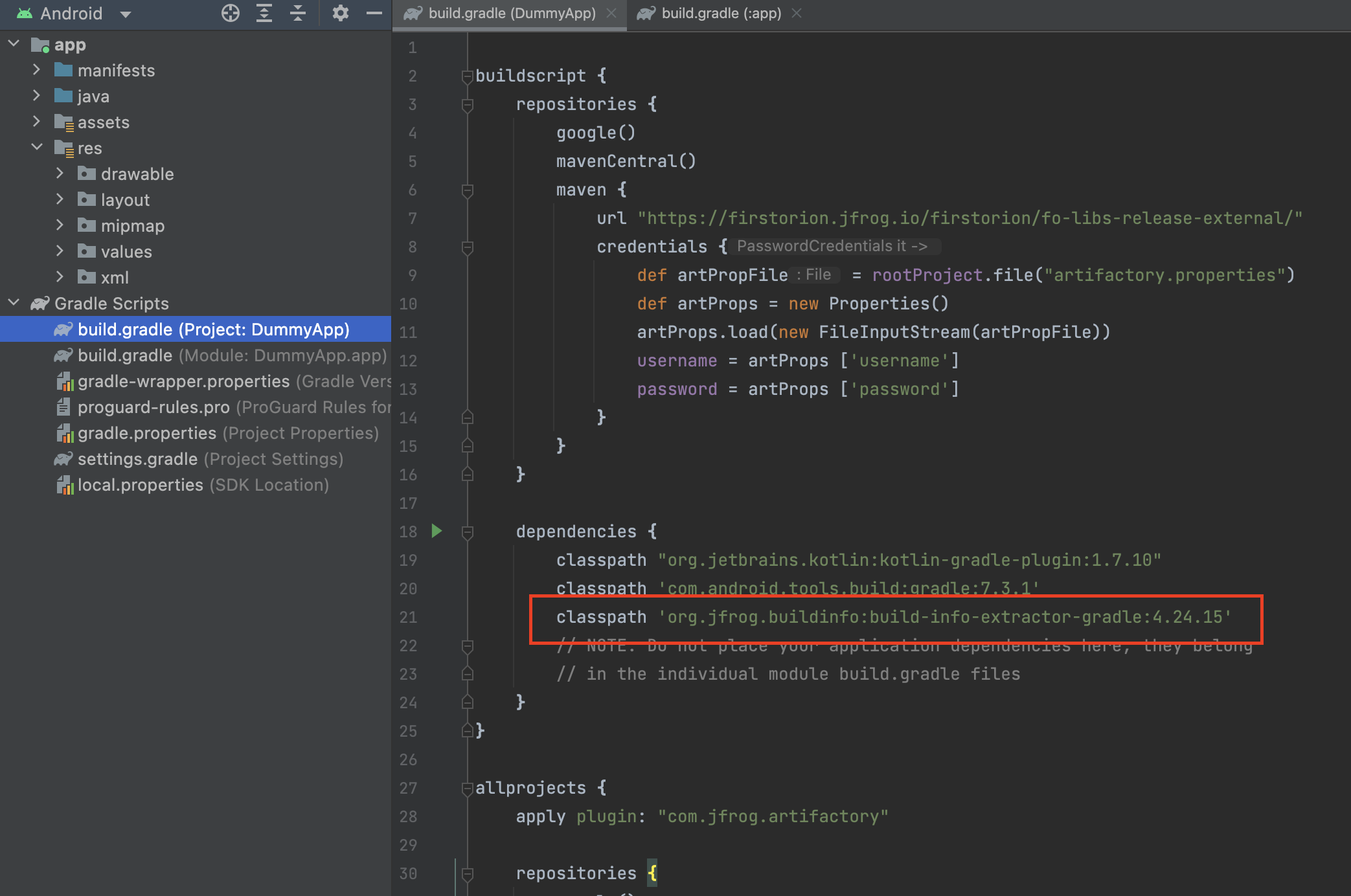
Add the following *JFrog BuildInfo* dependency on the class path in `buildscript{} dependencies{}` closure:
```groovy
dependencies {
. . .
classpath 'org.jfrog.buildinfo:build-info-extractor-gradle:4.24.15'
. . .
}
```
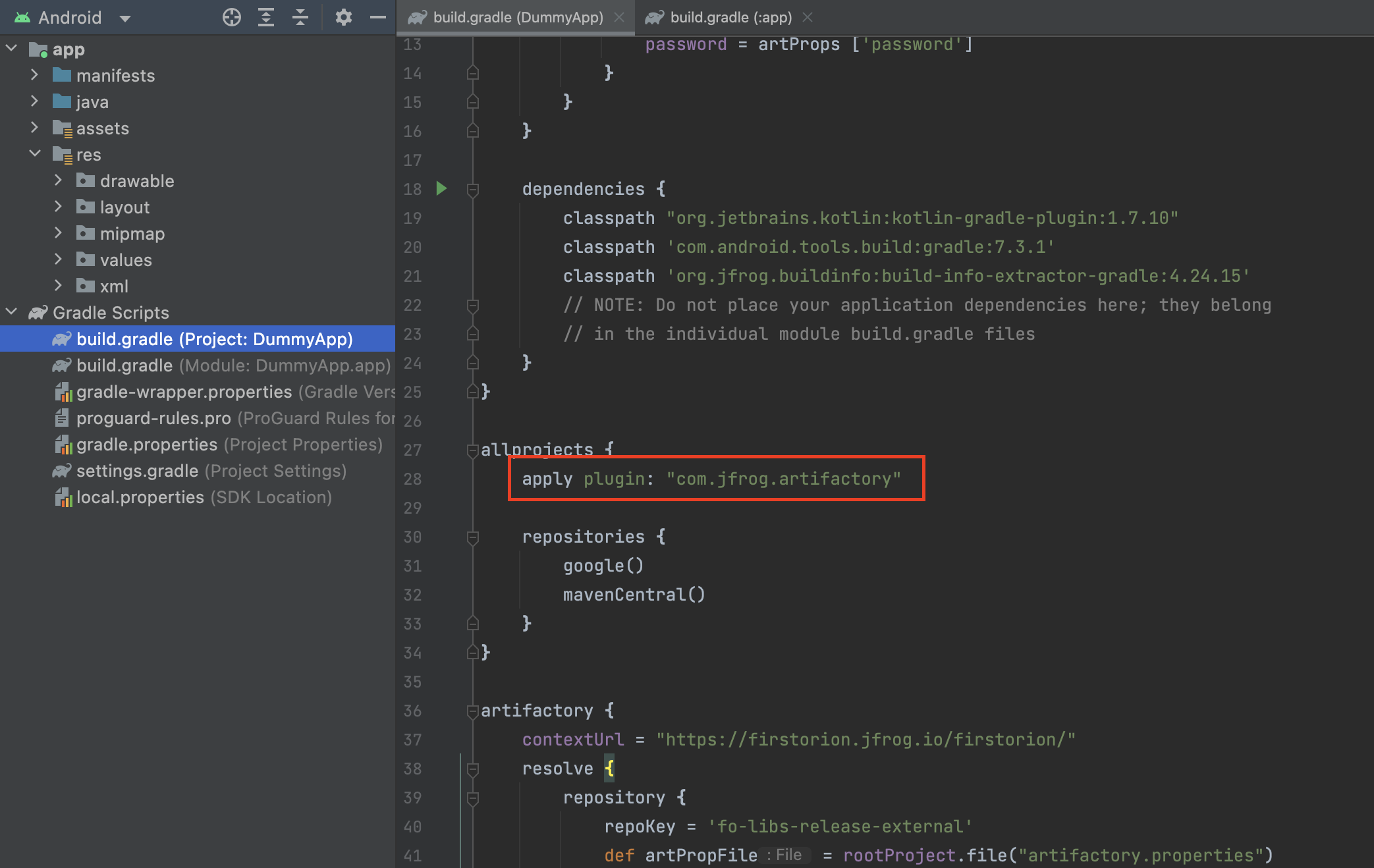
Add the Artifactory *Gradle* plugin:
```groovy
allprojects {
apply plugin: "com.jfrog.artifactory"
repositories {
. . .
}
. . .
}
```
Add the `artifactory{}` closure to resolve Android ENGAGE library:
```groovy
artifactory {
contextUrl = "https://firstorion.jfrog.io/firstorion/"
resolve {
repository {
repoKey = 'fo-libs-release-external'
def artPropFile = rootProject.file("artifactory.properties")
def artProps = new Properties()
artProps.load(new FileInputStream(artPropFile))
username = artProps ['username']
password = artProps ['password']
maven = true
}
}
}
```
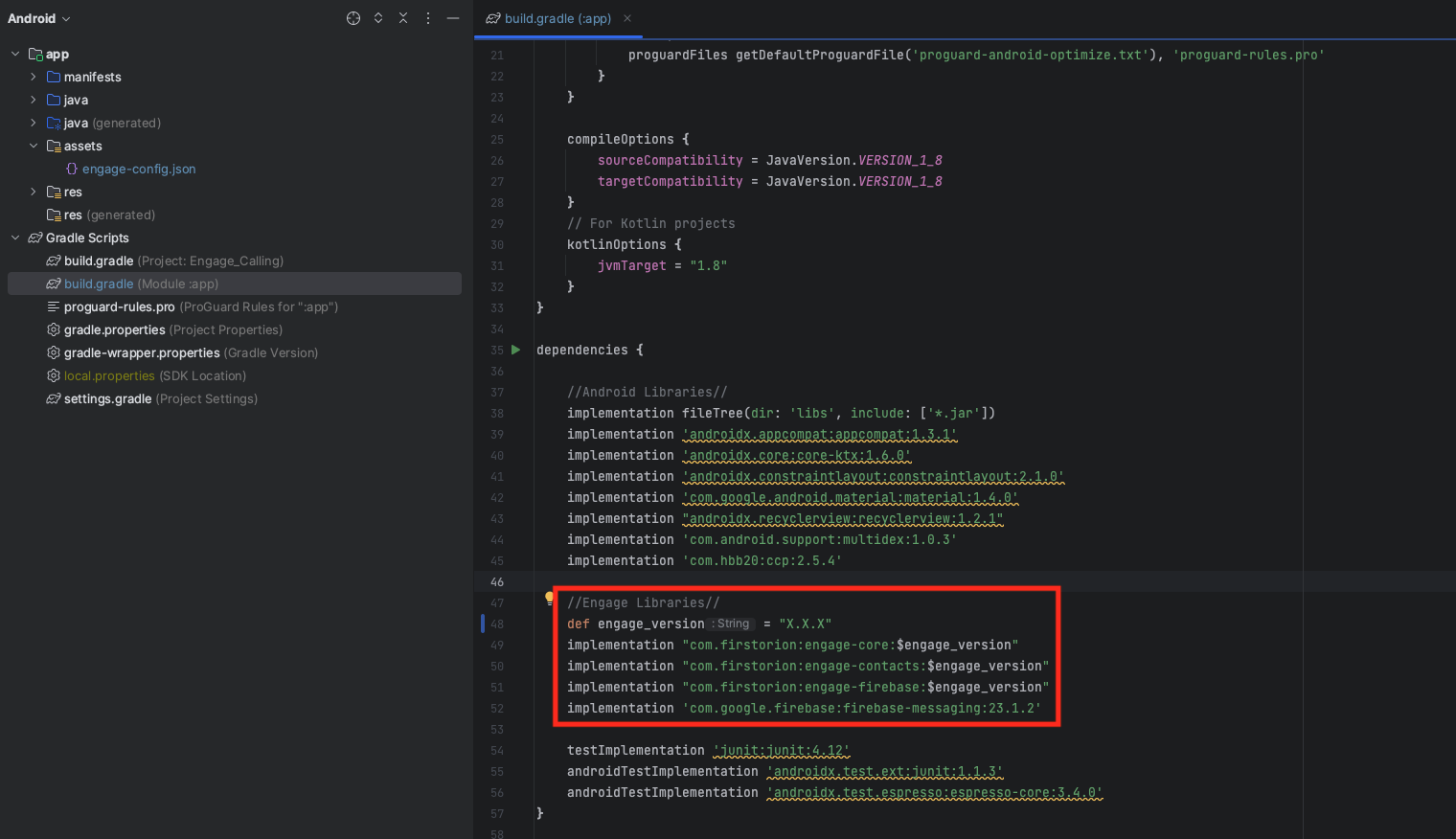
**3.2** Edit the App-level `build.gradle` file\
Add the ENGAGE SDK dependencies in the `dependencies{}` closure:
```groovy
def engage_version = "X.X.X"
implementation "com.firstorion:engage-core:$engage_version"
implementation "com.firstorion:engage-contacts:$engage_version"
implementation "com.firstorion:engage-firebase:$engage_version"
```
> 📘 NOTE
>
> The above is true for a basic integration. Please refer to [Common Integration Scenarios](https://developer.firstorion.com/firstorion-public/docs/common-integration-scenarios-1) to further explore a couple of the most common integrations.
**3.3** Sync Gradle\
Make sure to press "Sync Now" on the banner that pops up after saving.
## Step 4. Setup ENGAGE Configuration
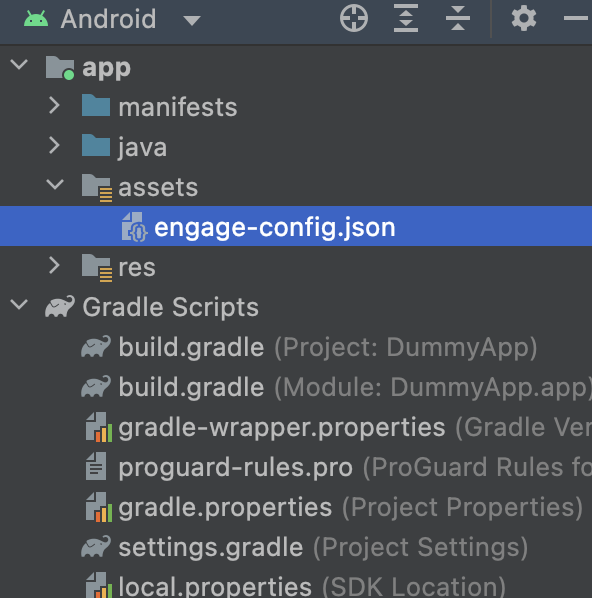
Before using, the ENGAGE SDK must be configured. The `engage-config.json` file, will be provided by First Orion. See [Pre-Integration Steps](https://developer.firstorion.com/firstorion-public/docs/pre-integration-steps).
**4.1** Add the `engage-config.json` file to the following folder:
```
app/src/main/assets
```
Example of 'engage-config.json' file:
```json
{
"EngageEndpoint": "https://enage.endpoint.com/",
"EngageAppId": "570696b2-24cf-455f-a586-95b3a28acc78",
"EngageTokenType": "fofcm",
"EngageVerificationType": "pin",
"ConfigVersion": 3.0
}
```
**4.2** Configure `engage-config.json` file\
Change the `engage-config.json` file to best suit your use case. For more information on the ENGAGE config, see [Engage Configuration](https://developer.firstorion.com/firstorion-public/docs/engage-configuration).
## Step 5. Request Permissions
The ENGAGE SDK requires specific permissions in order to function properly. See [Android Permissions](https://developer.firstorion.com/firstorion-public/docs/android-permissions) for more information.
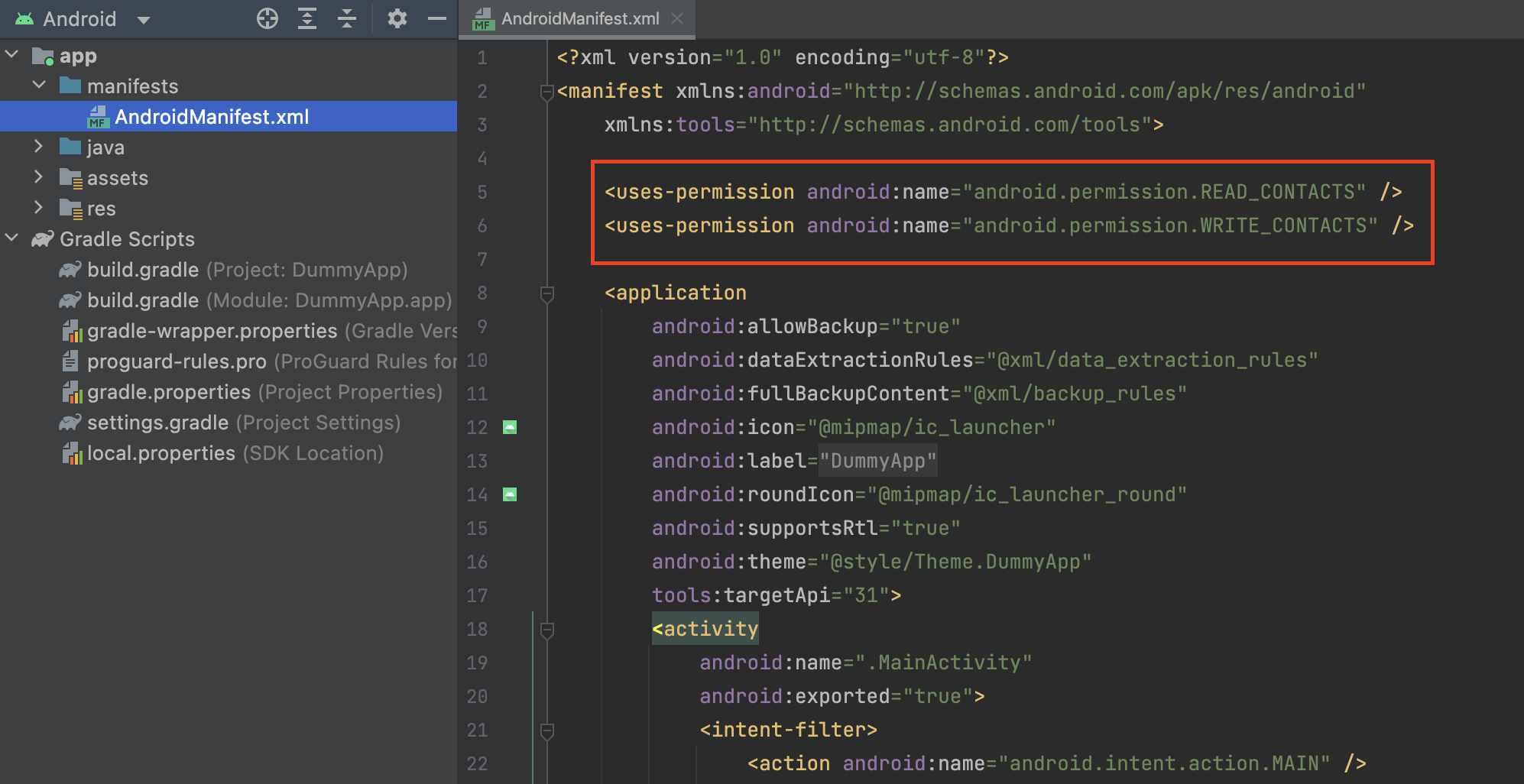
**5.1** Add Permissions to `AndroidManifest.xml`\
Add the following permissions to `AndroidManifest.xml`:
```xml
```
## Step 6. Setup Work Manager
The ENGAGE SDK uses WorkManager for job scheduling. ENGAGE SDK will initialize a default WorkManager instance if one does not exist.
If the host app already disables `WorkManager` automatic initialization, measures should be taken to guard against ENGAGE SDK attempting to automatically initialize `WorkManager`. See [Work Manager](https://developer.firstorion.com/firstorion-public/docs/workmanager).
If the host app does not use WorkManager or is okay with `WorkManager` automatic initialization, no additional work is required.
## Step 7. Host App Specific Integration
The main setup of the ENGAGE SDK has been completed. All that is left is the host app specific integration of the ENGAGE SDK. All host apps should request the required permissions and register their users with the ENGAGE platform.
You can refer to the *Android Gold Copy*, which is included in the [Pre-Integration Steps](https://developer.firstorion.com/firstorion-public/docs/pre-integration-steps). This demo application serves as a reference on how to implement the final required functionality mentioned above.
If the host app uses Firebase, please refer to [this](https://developer.firstorion.com/firstorion-public/docs/firebase) to ensure ENGAGE functionality is not interrupted.
For more information, please refer to the following pages:
| Function | Purpose |
| ---------------------------------------------- | --------------------------------------------------------------------- |
| [Authentication](https://developer.firstorion.com/firstorion-public/docs/authentication-1) | Common functions and implementation behind user authentication |
| [Android Permissions](https://developer.firstorion.com/firstorion-public/docs/android-permissions) | Permissions required by ENGAGE SDK and some common integrations |
| [Firebase](https://developer.firstorion.com/firstorion-public/docs/firebase) | How ENGAGE SDK uses Firebase and some common integrations |
| [Logging](https://developer.firstorion.com/firstorion-public/docs/logging) | Common logging techniques for ENGAGE |
| [WorkManager](https://developer.firstorion.com/firstorion-public/docs/workmanager) | How ENGAGE SDK uses WorkManager and some troubleshooting involving it |
## Step 8. Test ENGAGE Push
Functionality must be tested after completing the ENGAGE SDK integration. From the Content Portal, customers can deliver content to a device through an easy-to-use interface.
A valid, configured ENGAGE Program must be created in the Content Portal before delivering the content. First Orion can provide testing assistance at any time.
**8.1** Complete onboard in the host app\
Start with a clean installation of the host app. Make sure the device has completed onboarding, accepted the required permissions, and is fully registered with the ENGAGE platform.
**8.2** Schedule a test call on the First Orion Portal\
Use the provided portal credentials that have been provided in the [Pre-Integration Steps](https://developer.firstorion.com/firstorion-public/docs/pre-integration-steps) to log into First Orion's portal. Next you will want to select the configured ENGAGE Program and send a test call.
Wait a few seconds and you should see a test call come through with the expected contact name and image. If the call does not come through, please refer to the [Troubleshooting](https://developer.firstorion.com/firstorion-public/docs/troubleshooting).
### Where to go from here?
Check out these pages for a deeper dive into the ENGAGE SDK
* [Common Integration Scenarios](https://developer.firstorion.com/firstorion-public/docs/common-integration-scenarios-1)
* [Migrations](https://developer.firstorion.com/firstorion-public/docs/engage-migrations)
* [Troubleshooting](https://developer.firstorion.com/firstorion-public/docs/troubleshooting)
> 🚧 Cross-Platform Compatibility
>
> ENGAGE® support Flutter Framework. Please refer [Flutter Quick Start Guide](https://developer.firstorion.com/firstorion-public/docs/flutter-plugin-quick-start).