

Genesys Cloud - Call Authentication
Setup Call Authentication using SIP.
Pre-requisites
- Annual Contract Agreement with First Orion Branded Communications (Post paid)
- Access to First Orion Customer Portal
- Vetted and Approved Business
- Genesys PureCloud account
- Genesys BYOC Cloud - Link to Genesys listing
Configuration Pre-requisites
- Default Site configured for Organization
Genesys Configuration
Step 1: Purchase BYOC
Note: The integration itself is free, but you click purchase.
- Login to the Genesys AppFoundry - Link to Genesys listing
- Find and Purchase BYOC Cloud. This will add the functionality to add custom SIP Trunks to your account.
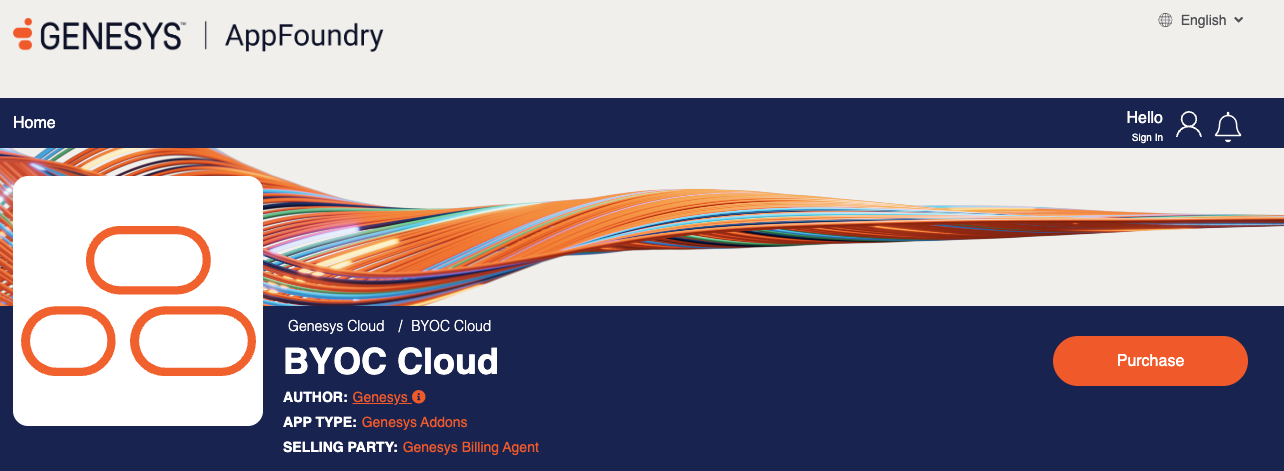
Step 2: Setup SIP Trunk
Note! Ensure that any caller ID rules applied to the main PSTN Trunk are replicated on the First Orion trunk.
-
Login to Genesys PureCloud
-
Navigate to Admin
-
Click Trunks then Create New
-
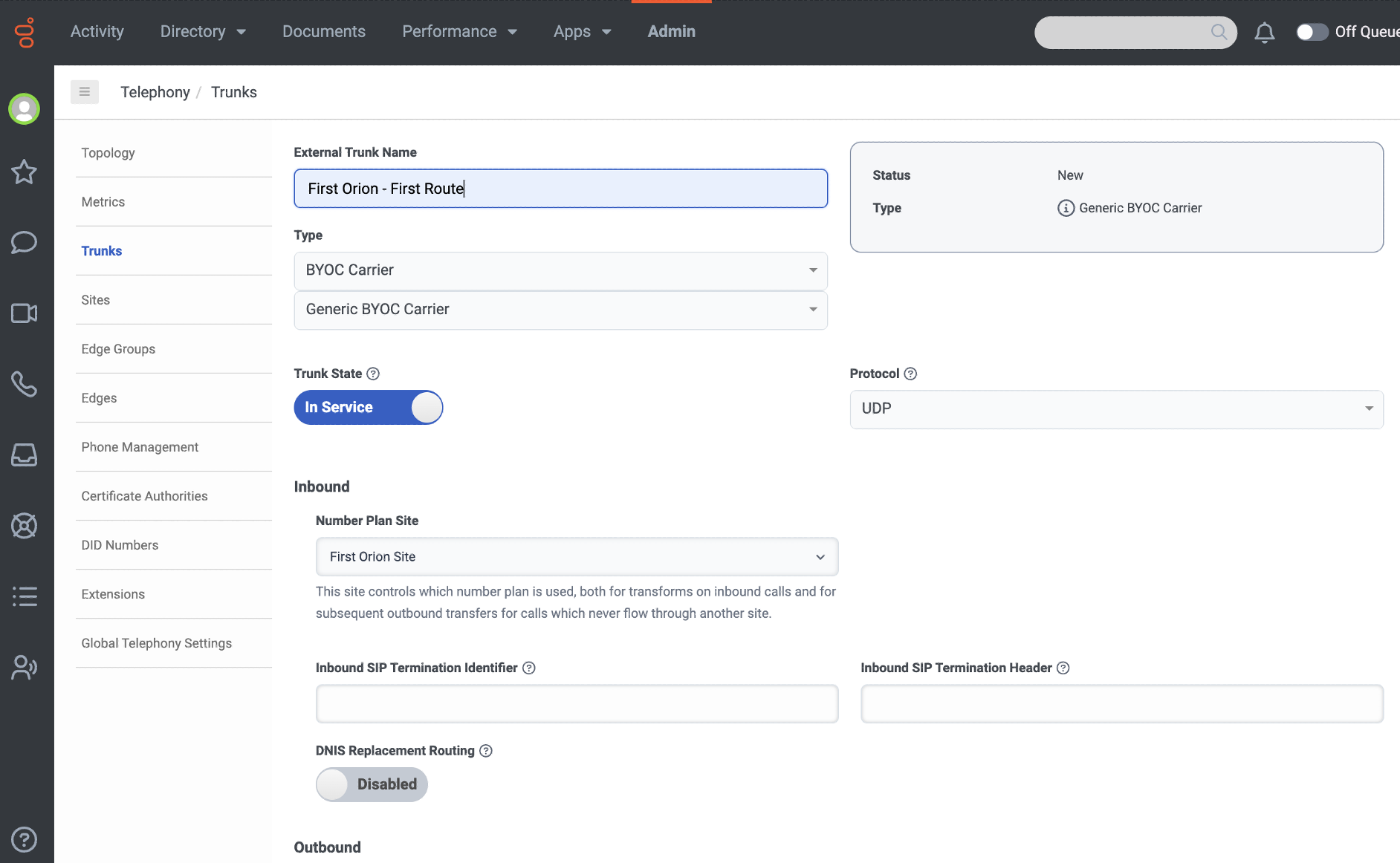
Enter Trunk Information
-
Name the Trunk, "First Orion Call Auth"
-
Set Type to BYOC Carrier
- Select Generic BYOC Carrier
-
Set Protocol to TLS
-
Select the appropriate Number Plan Site
-
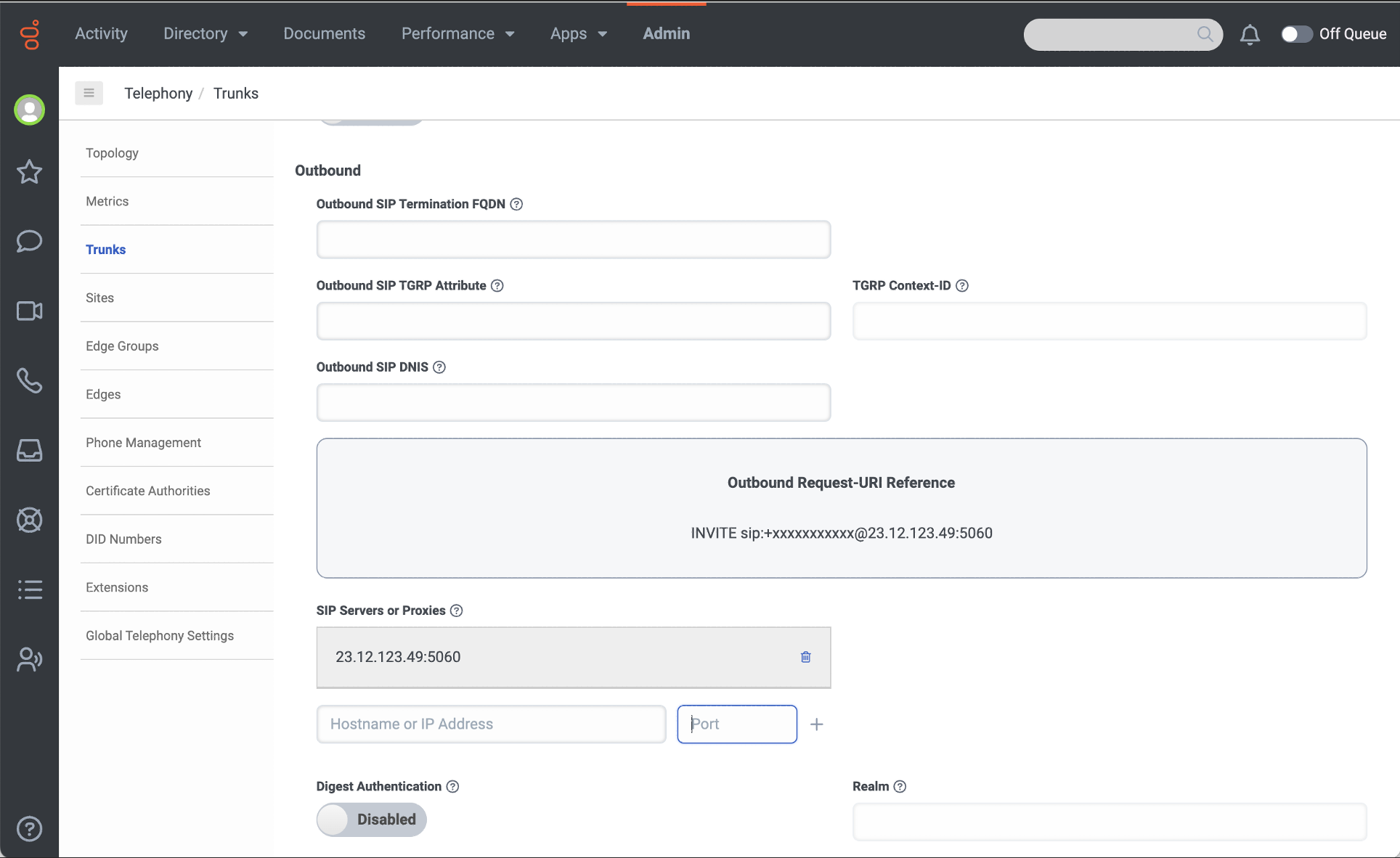
In the Outbound section under SIP Server or Proxies, enter the IP Address provided by First Orion.
-
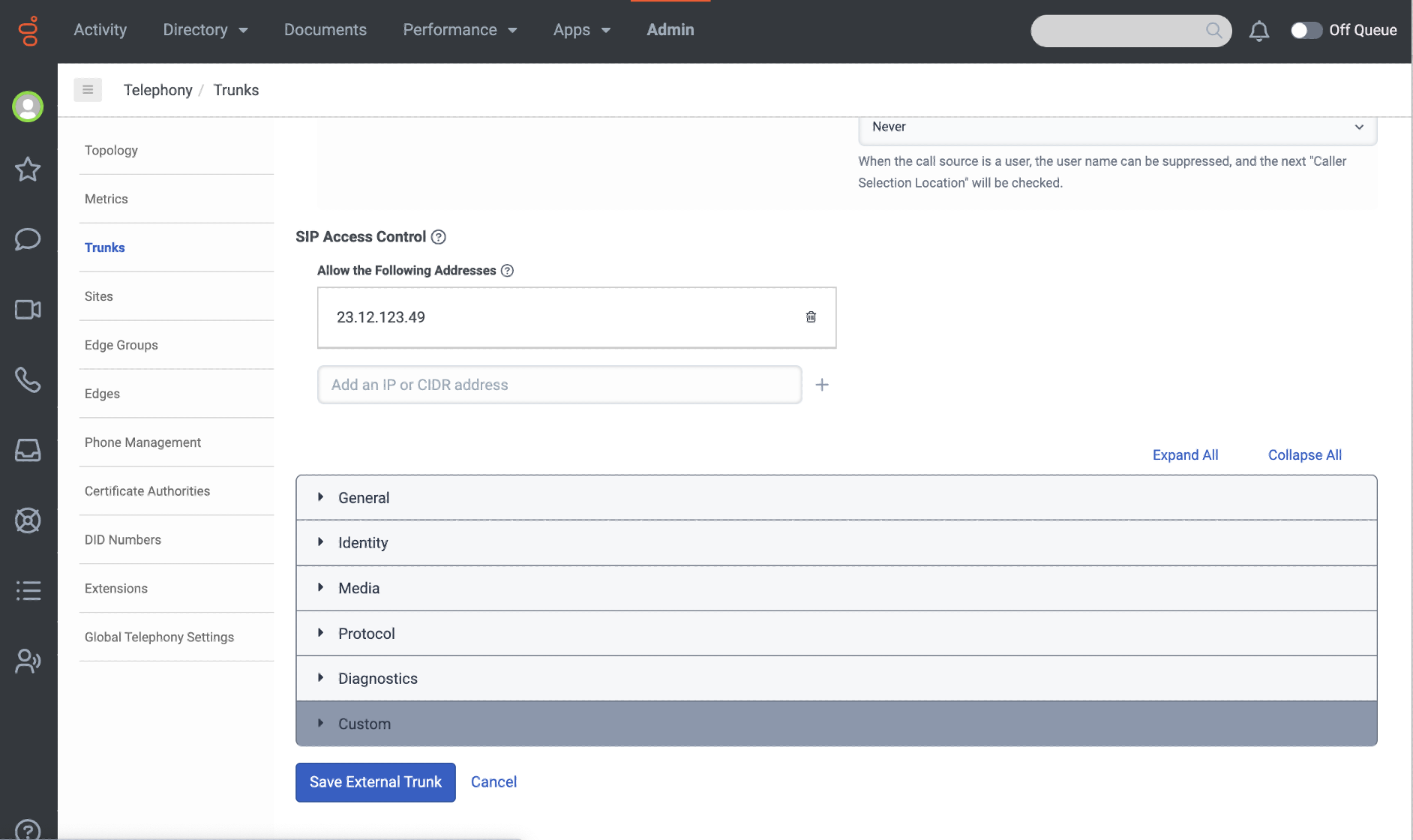
In the SIP Access Control section ensure the IP Address matches the SIP Servers or Proxies IP Address.
-
Port: 5061
-
-
Step 3: Configure Site
-
Login to Genesys PureCloud
-
Navigate to Admin
-
Click Sites
-
Click on the Site used for Outbound calling
-
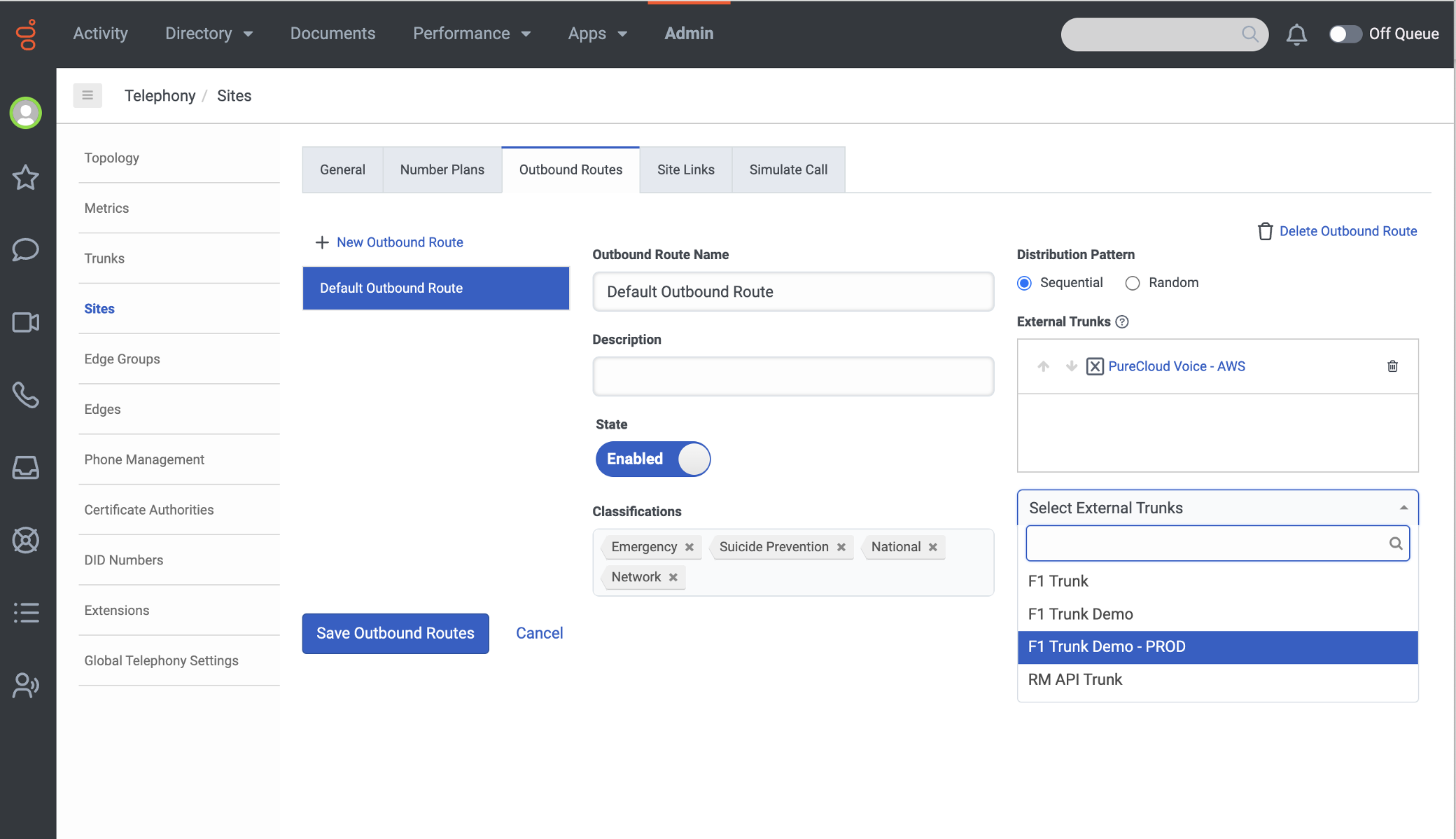
On the Site detail page, click Outbound Routes
-
Click the Select External Trunks drop down and select the First Orion Call Auth SIP Trunk just created.
-
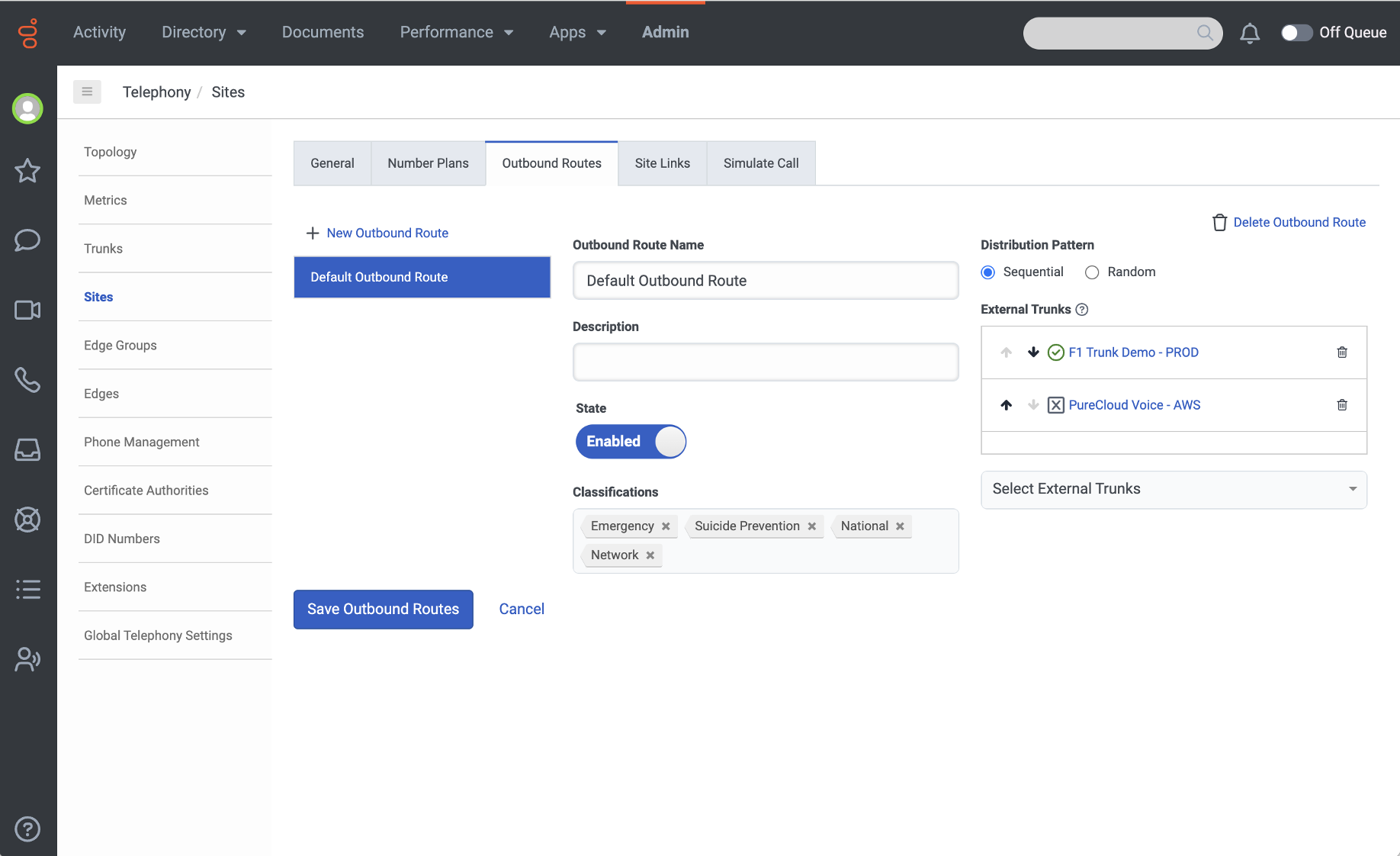
Set order of External Trunks
- The First Orion Call Auth SIP Trunk needs to be first in the routing
-
Click Save Outbound Routes
Step 4: Make Test Phone Calls
Make test calls to confirm Branding.
Updated 10 days ago