

Cisco CUCM - Call Authentication
Setup Call Authentication using SIP.
Pre-requisites
- Annual Contract Agreement with First Orion Branded Communications (Post paid)
- Access to First Orion Customer Portal
- Vetted and Approved Business
- Cisco Unified Call Manager
- Desk Phone or Softphone
- Appropriate access to DNS provider
- Fully qualified domain (FQDN)
Expectations
- SIP over TLS
Configuration Pre-requisites
- All CUCM nodes running the Call Manager service that will have SIP trunks to the Call
Authentication service will require internet access to reach the First Route service
endpoint. IPs and ports for firewall whitelisting will be provided upon request.
- The Call Authentication service via SIP prefers the calling and called party numbers in the
SIP invite to be in 10 digit, 11 digit, or e.164 format. Transformation or translations should
be performed prior to Call Authentication SIP Trunk call routing. - Encryption is required using either TLS or mTLS.
- First Orion will provide the Call Authentication certificate chain to be added to the
Callmanager-trust. - For mTLS, First Orion will also need the certificate chain or root certificate for each
Call Manager node that will connect to the Call Authentication service.
- First Orion will provide the Call Authentication certificate chain to be added to the
Solution Overview
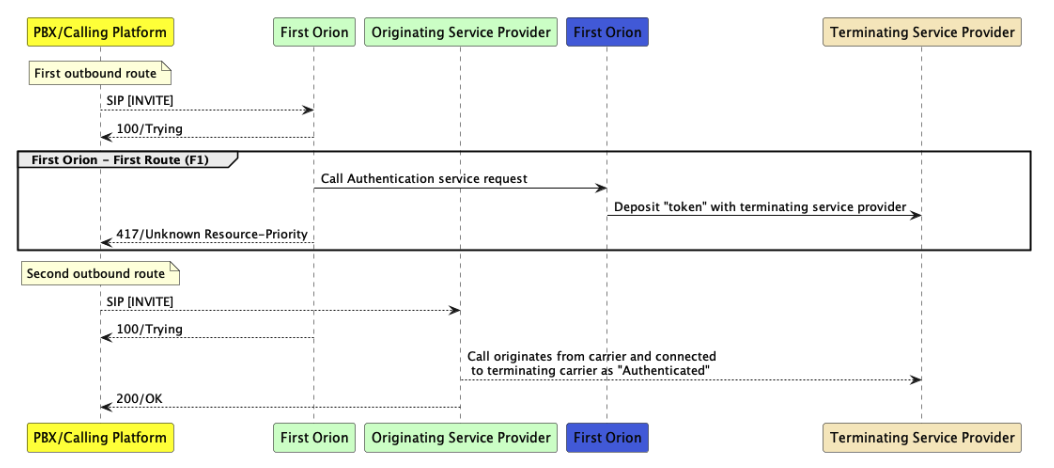
The following diagram illustrates the high-level call flow to deliver Call Authentication originating
from CUCM with example 417 SIP response code.
Testing
Thorough testing is required when configuring a new SIP trunk for customers. Based on industry
standards, following scenarios should be confirmed.
| Scenario | Applicable to First Orion |
|---|---|
| All inbound and outbound routes (every combination of IP between platform and Call Auth service) | Yes, primarily outbound |
| 3rd Party Transfers | Yes, test all variations of 3rd party transfers |
CUCM Configuration
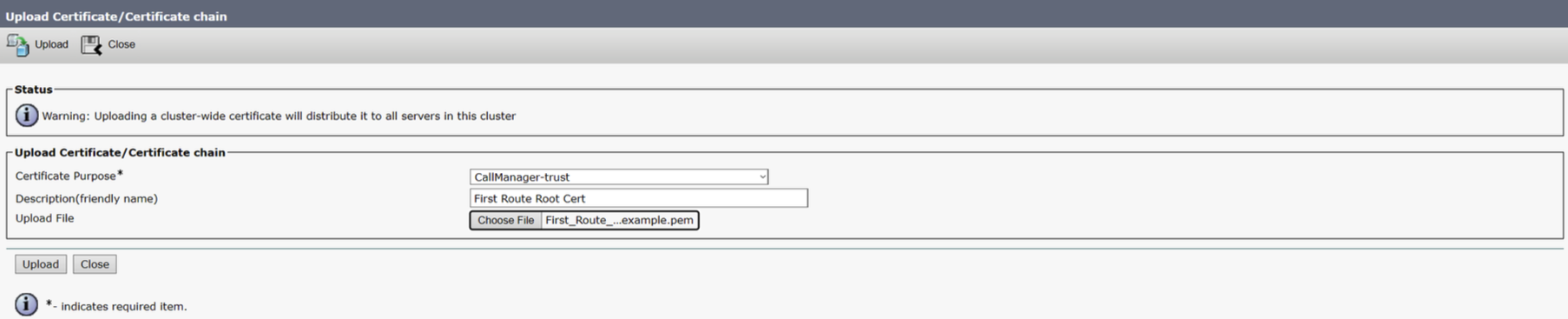
Upload First Orion Root Certificates to CUCM Trust Stores
- In the Cisco Unified OS Administration portal, go to Security > Certificate Management.
- Click on Upload Certificate/Certificate chain.
- For Certificate Purpose, select CallManager-trust.
- (optional) Fill in the Description(friendly name) field.
- Click Choose File and select the root certificate provided by First Orion.
- Click Upload.
- If there are multiple clusters, repeat steps 1-5 on a CallManager node in each cluster.
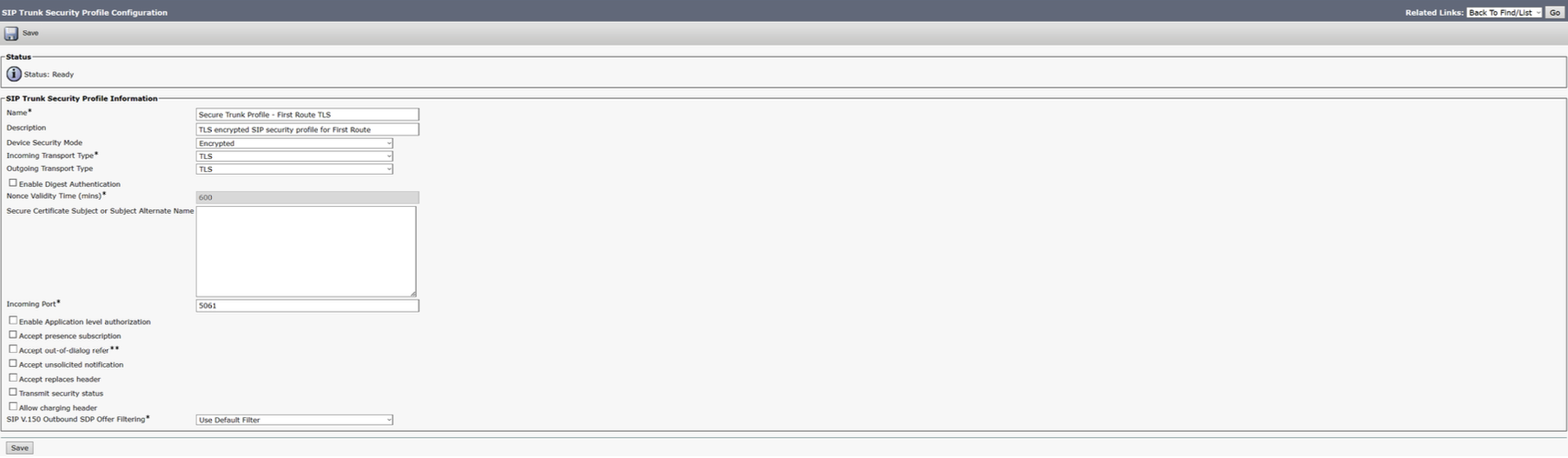
SIP Trunk Security Profile
- In the CUCM Administration portal, go to System > Security > SIP Trunk Security
Profile. - Click on Add New.
- Fill in the Name and Description fields.
- For Device Security Mode, select Encrypted.
- Ensure Incoming Transport Type and Outgoing Transport Type updated to TLS.
- Incoming Port will be 5061 by default.
- Non-standard ports may be used for SIP-TLS connections at the customer’s
request.
- Non-standard ports may be used for SIP-TLS connections at the customer’s
- Leave remaining fields in their default values.
- Save the changes.
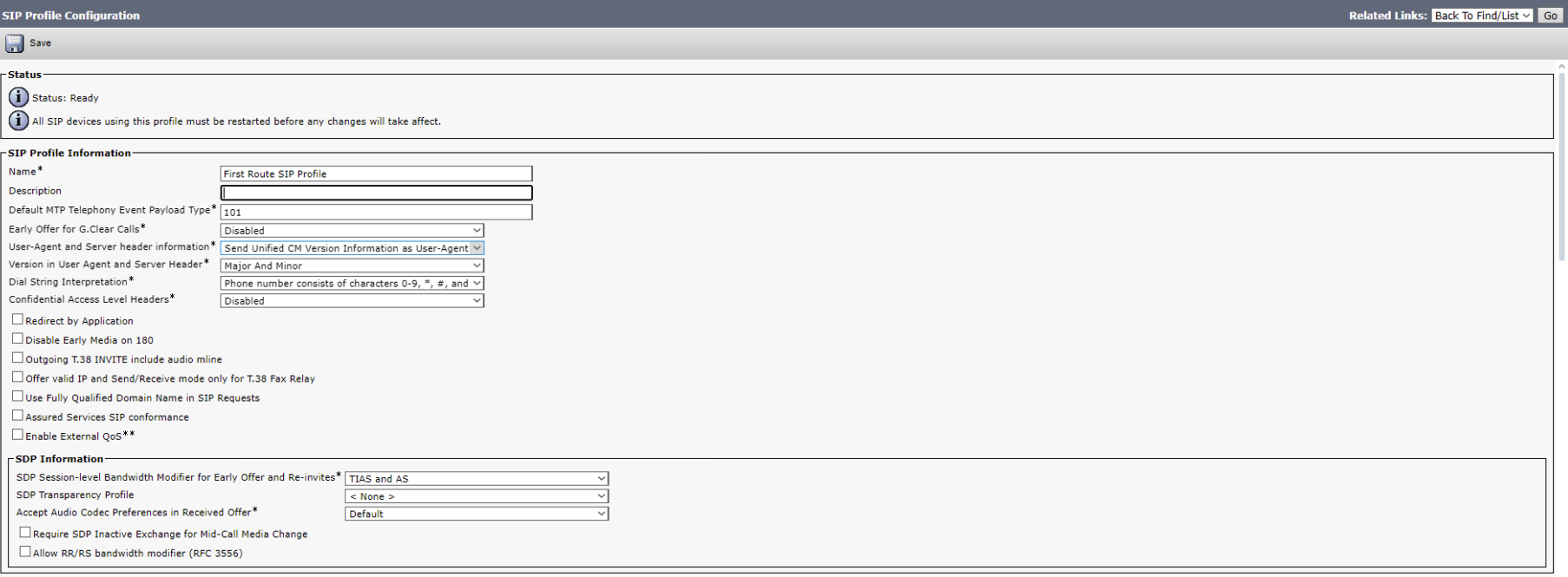
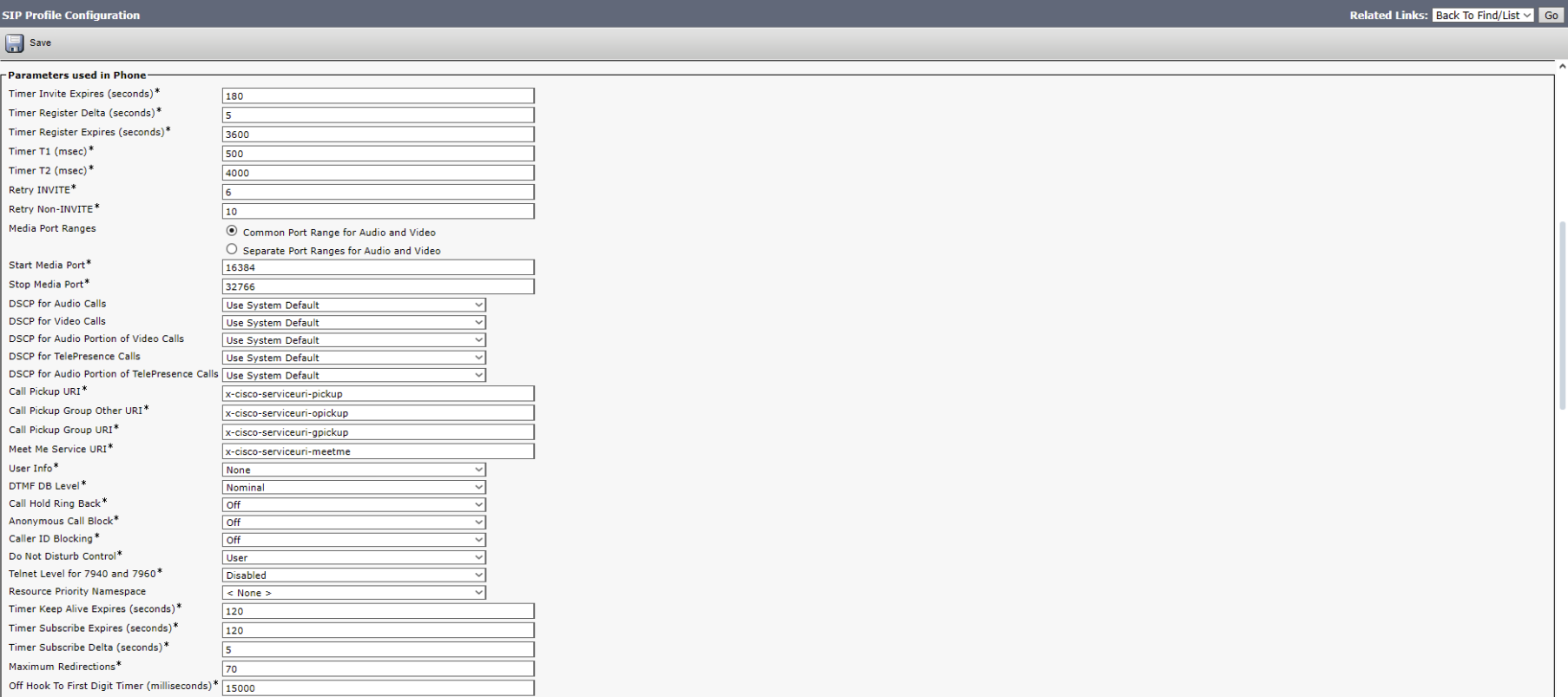
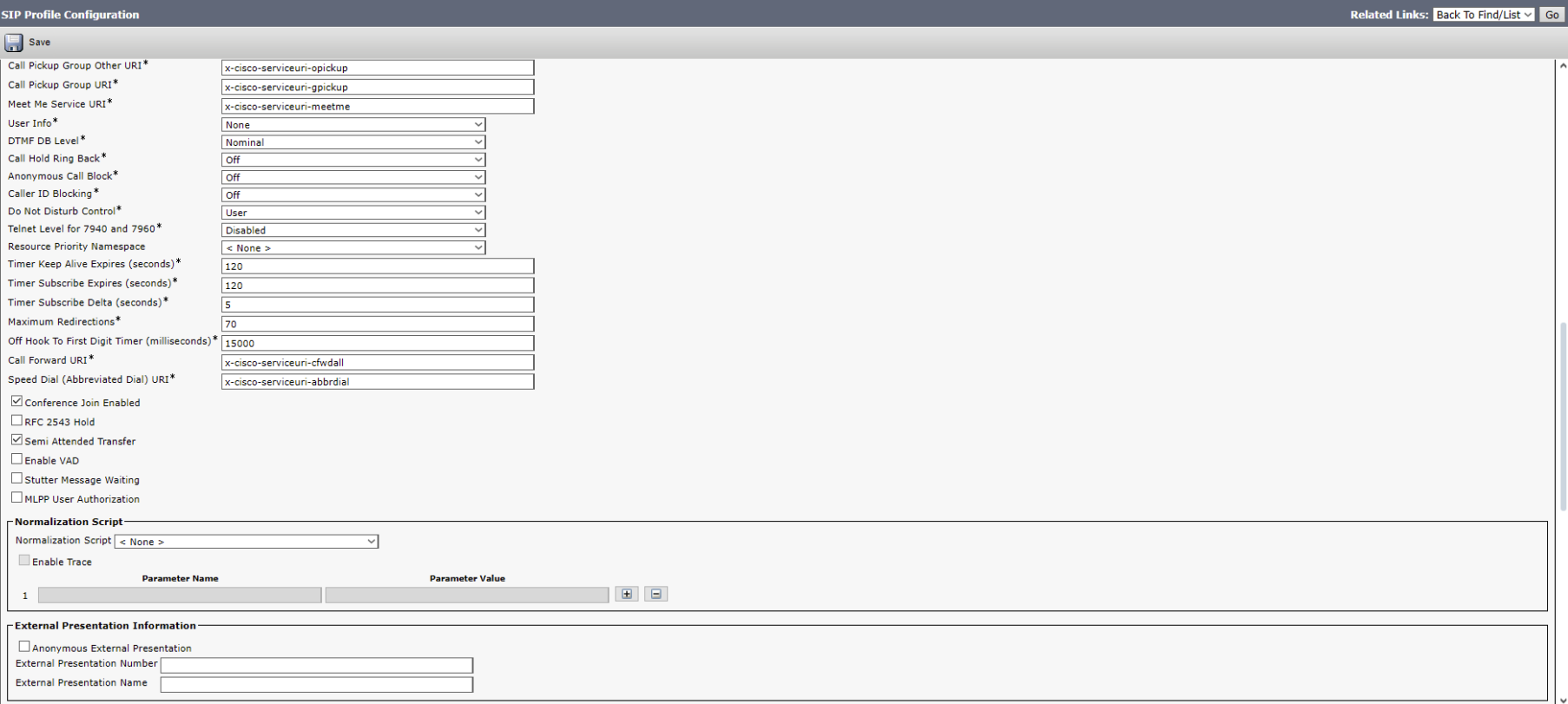
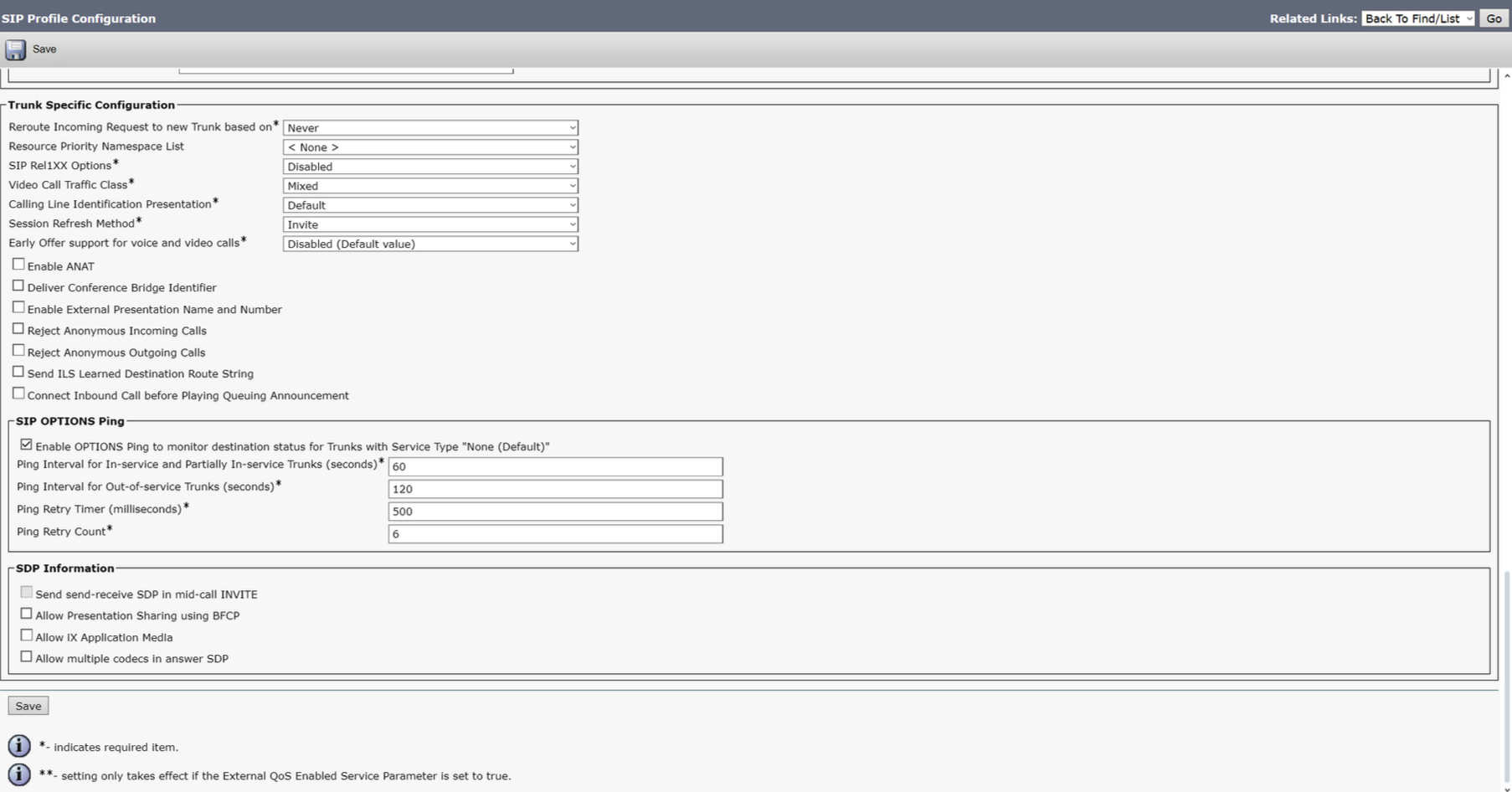
SIP Profile
- In the CUCM Administration portal, go to Device > Device Settings > SIP Profile.
- Copy the default Standard SIP Profile.
- Update the Name and Description fields as needed.
- Enable SIP OPTIONS Ping, using the default timer values.
- Leave the rest of the fields in their default values.
- Save the changes.
SIP Trunk
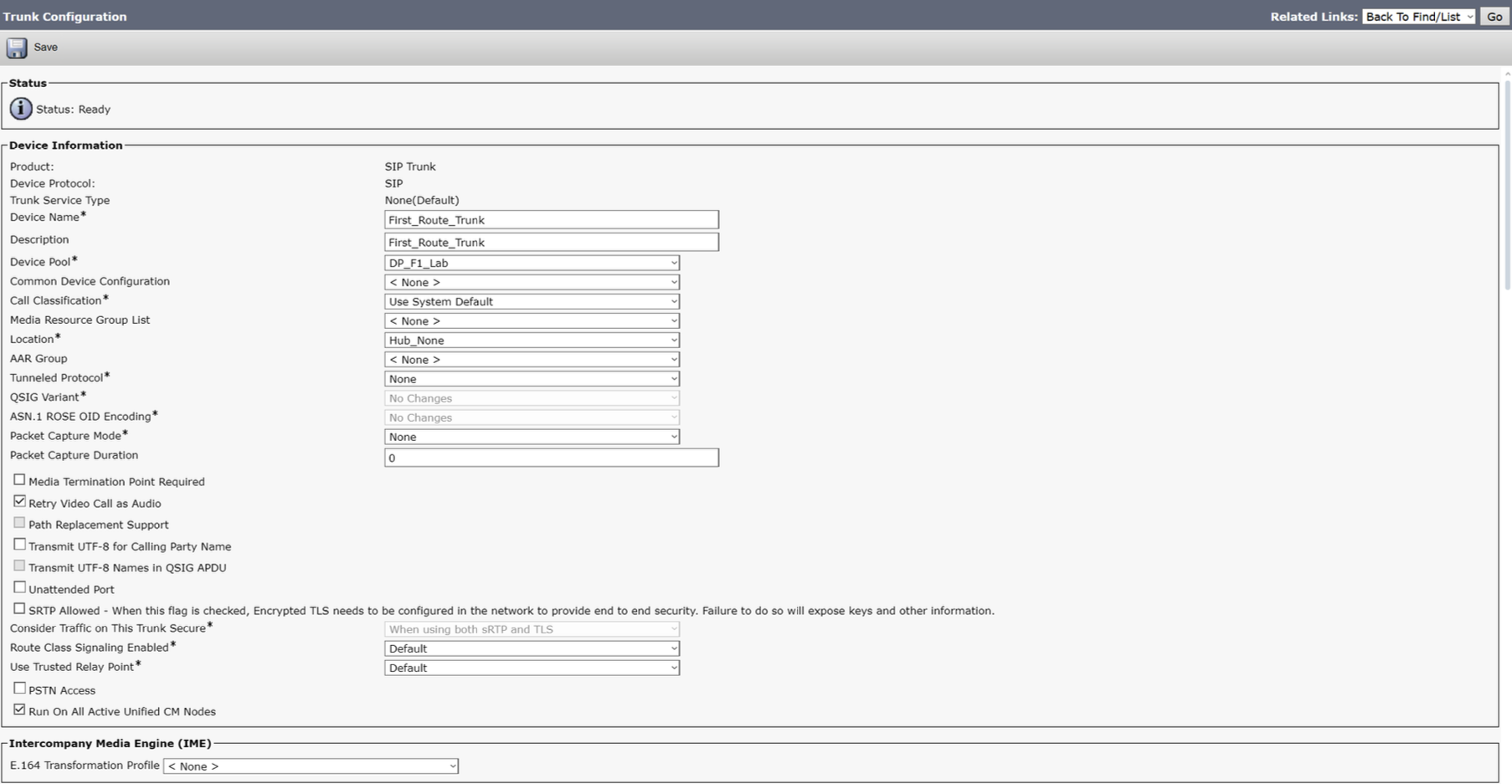
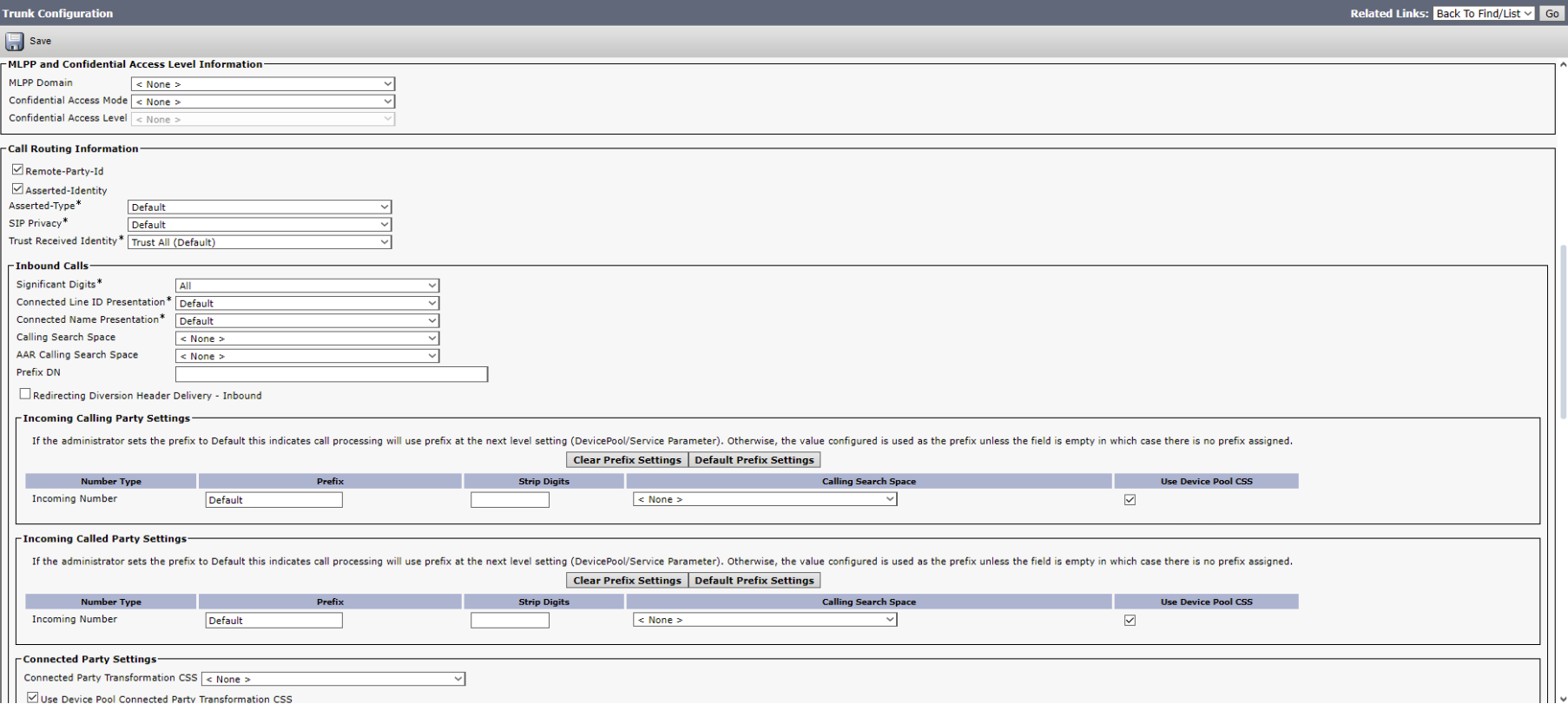
- In the CUCM Administration portal, go to Device > Trunk.
- Click Add New.
- On the first Trunk Configuration page, use the following values:
- Trunk Type
- SIP Trunk
- Device Protocol
- SIP
- Trunk Service Type
- None(Default)
- Trunk Type

- Click Next
- Update the Name and Description fields as needed.
- Select a Device Pool based on your configuration needs.
- Select a Location based on your configuration needs.
- Ensure Media Termination Point Required is NOT checked.
- It is recommended that Run On All Active Unified CM Nodes is checked for redundancy.
- If activating this feature on the Call Authentication SIP trunk, it is also
recommended to activate this feature for any Route List that contains a Route
Group utilizing this trunk in its configuration. - To better understand this use case, reference the following Cisco forum posts:
- If activating this feature on the Call Authentication SIP trunk, it is also
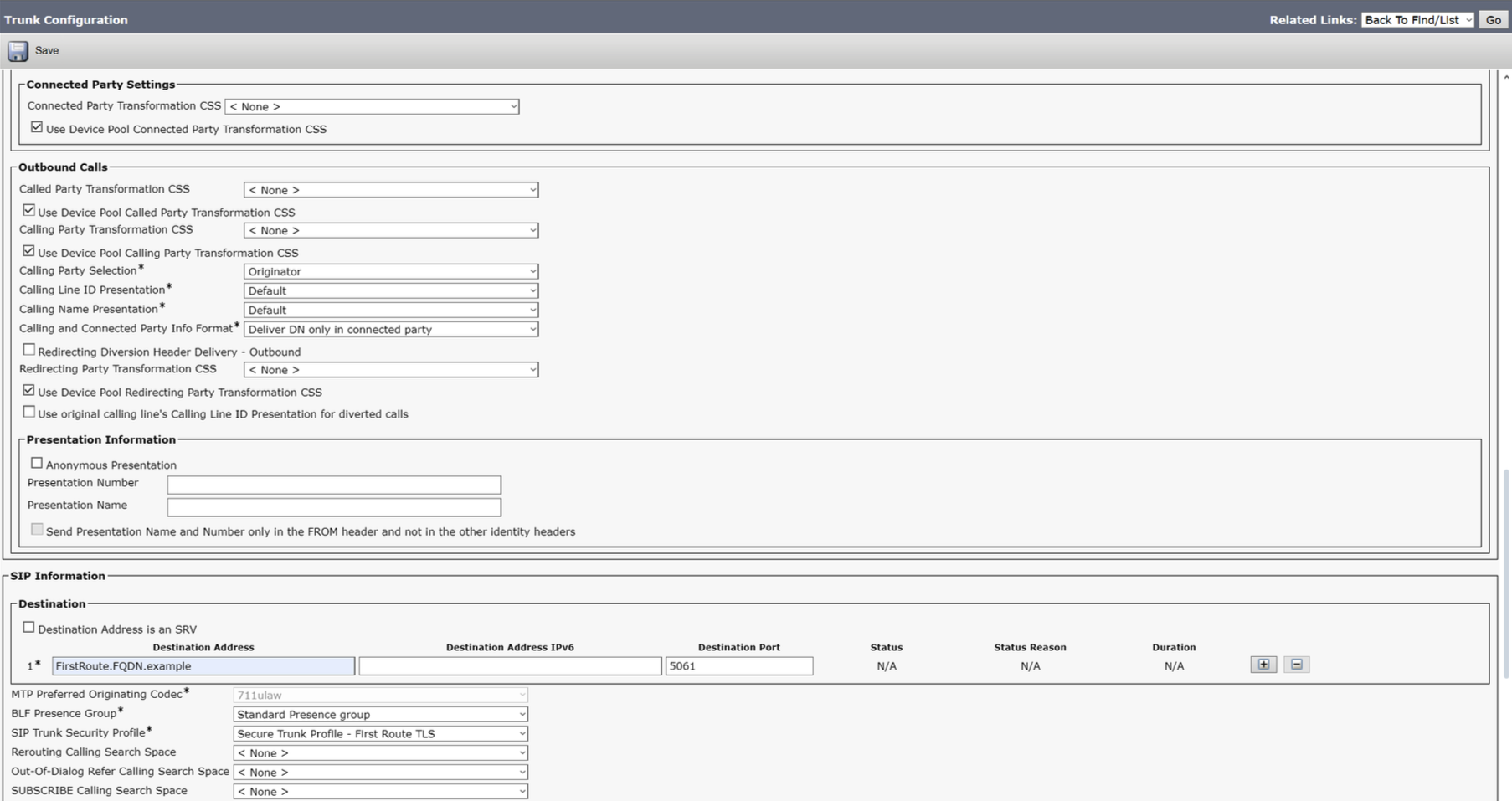
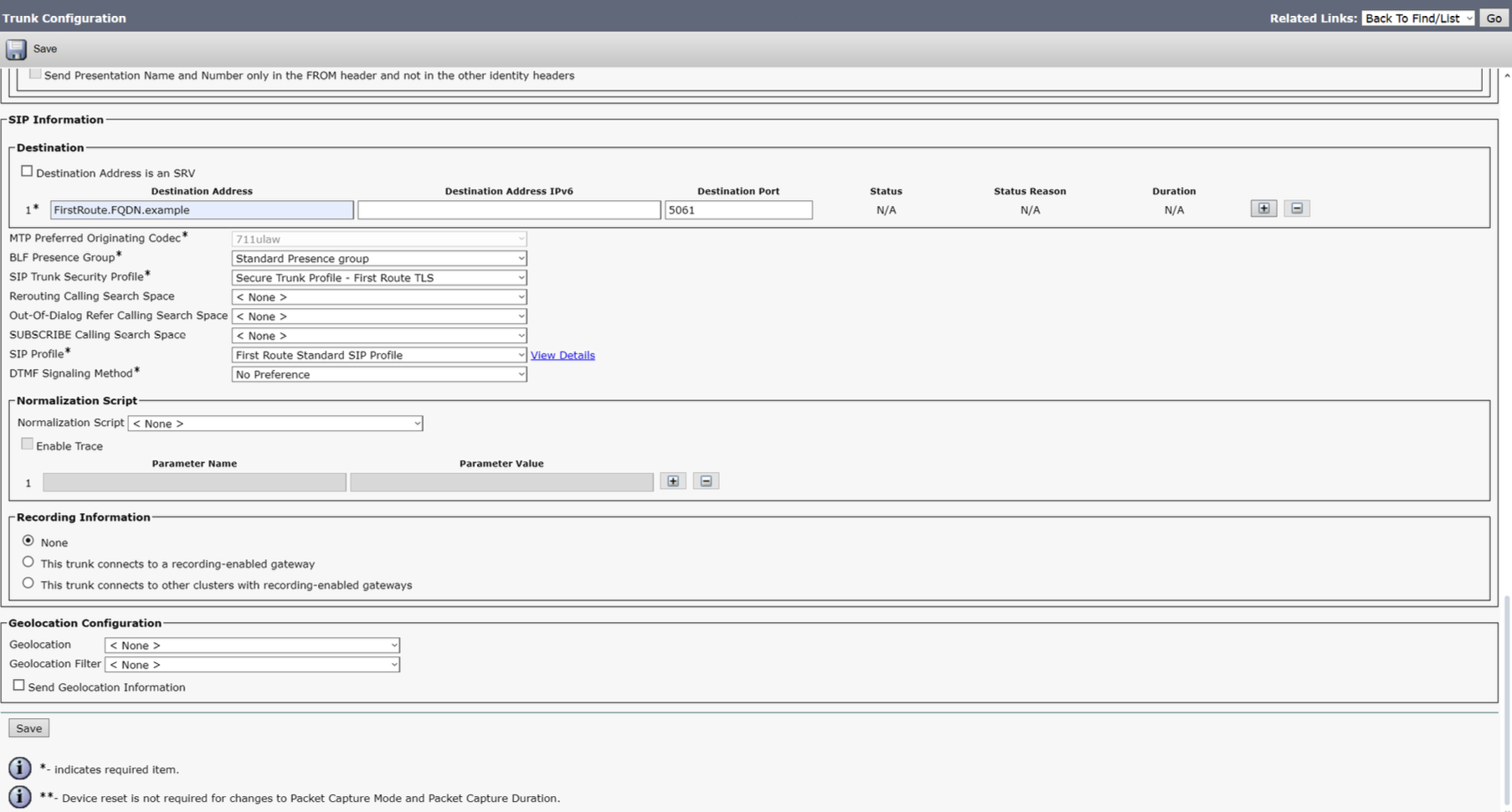
- In the SIP Information section, use the following values:
- Destination Address
- FQDN provided by First Orion team
- SIP Trunk Security Profile
- Secure TLS Profile created previously
- SIP Profile
- Profile created previously
- Destination Address
- Save the changes.
Mutual TLS(mTLS) Considerations
To implement mTLS, First Orion will need the root certificate of the CallManager service
identity certificate for each Publisher and Subscriber that will connect to Call Authentication.
Depending on CUCM configuration, First Orion may also need the root certificate for the ECDSA
identity certificate.
Determining CallManager Service Certificate Type
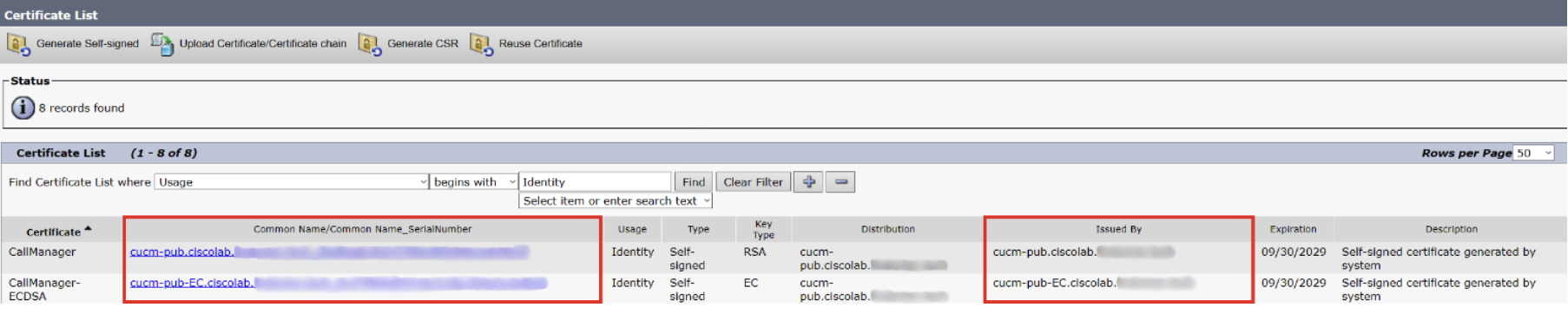
- In the Cisco Unified OS Administration portal, go to Security > Certificate Management.
- Use the query of:
a. Find Certificate List where Usage begins with Identity - Click Find.
- Find the rows with CallManager and CallManager-ECDSA in the Certificate column and
ensure the Usage column also contains Identity.

Identity certificates will fall into two broad categories: Self-Signed and Third-Party Signed.
- Self-signed certificates are signed by the server that presents it, so its “root” is itself. The
Common Name and Issued By fields will be the same. - Third-Party signed certificates are signed by either a public Certificate Authority (like Verisign,
Entrust, or Digicert) or a private Certificate Authority (like Windows, Linux, Unix, or IOS). The
Common Name and Issued By fields will be different.
Self-Signed
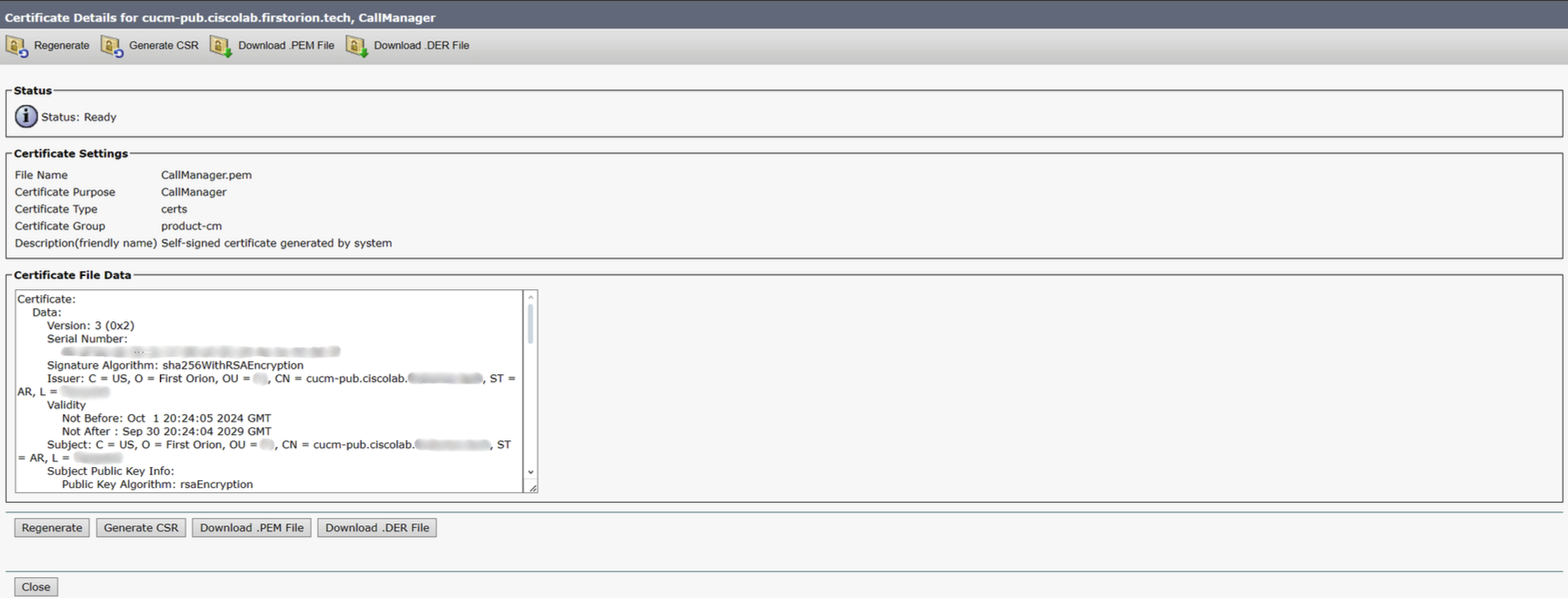
If the identity certificate is self-signed, First Orion will need a copy. To download a copy of the
self-signed certificate:
- In the Cisco Unified OS Administration portal, go to Security > Certificate Management.
- Use the query of:
- Find Certificate List where Usage begins with Identity
- Click Find.
- Find the row CallManager in the Certificate column and ensure the Usage column also
contains Identity. - Click on the hyperlink in the Common Name/Common Name_SerialNumber column.
- Click Download .PEM File.
Repeat steps 4-6 for the CallManager-ECDSA certificate.
Repeat steps 1-7 on each Publisher and Subscriber running the CallManager service in
your environment, especially if you have multiple clusters.
Third-Party Signed
If the Identity certificate is signed by a third-party CA, First Orion will need a copy of the Root
CA’s certificate in .PEM format. First Orion only needs one copy of each unique root CA.
- For public CAs, the root certificate can usually be found on the company’s website.
- For private CAs, talk to the admin who runs your CA, probably in your internal IT department.
Call Routing
The Call Authentication service entry needs to be first in the call routing list. There are multiple
ways this can be accomplished, and due to the complexity of CUCM’s configuration possibilities,
we leave it to the customer’s telephony engineer to decide which works best for their
environment. Due to the recursive nature of the SIP Call Authentication service, we strongly
recommend using route lists and route groups as the destination for “OffNet” route patterns
within the context of Call Authentication.
Make Phone Calls
Test phone calls from your Cisco phone numbers that have been added to a Call Auth Program.
Troubleshoot Checklist
- Verify First Orion and your Cisco CUCM are connected.
- Verify phone numbers are in Call Authentication Program.
Updated about 1 month ago