

Teams - Call Authentication
Setup Call Authentication using SIP.
Pre-requisites
- Annual Contract Agreement with First Orion Branded Communications (Post paid)
- Access to First Orion Customer Portal
- Vetted and Approved Business
- Teams Phone
- Microsoft Teams
- Public trusted TLS certificate and private key for the SBC
- Microsoft root certificates must be in CA list on SBC
- Appropriate access to DNS provider
- Fully qualified domain (FQDN)
Configuration Pre-requisites
- DNS Entry and SSL Certificate
- Option 1: First Orion Managed Cert. For this option First Orion will setup a DNS record, then the client will register the Subdomain/FDQN. First Orion will use Wildcard cert.
- Option 2: Client Managed Cert. For this option the client setups a DNS cord and certificate for the Subdomain/FDQN.
- Microsoft Teams licensing
Teams Configuration
Step 1: Direct Routing
- Login to Teams admin portal - https://admin.teams.microsoft.com
- Navigate to: Voice -> Direct Routing-> SBC’s
- Click “+ Add” to configure to SBC
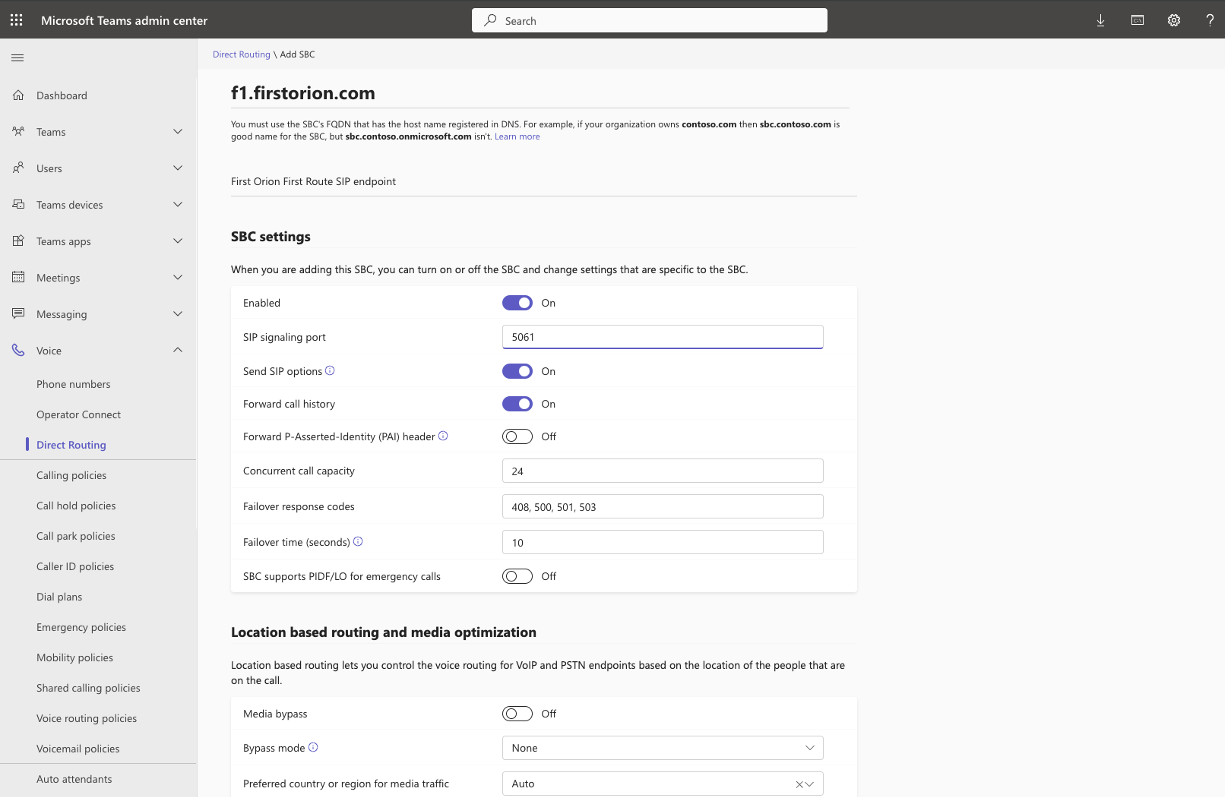
- Provide the following configuration
- Enabled: True
- FQDN: configured previously
- Example: f1.firtstorion.com
- SIP SIgnaling Port: 5061
- Failover response codes: 408,410,500,501,503
Step 2: Voice Routes
Note: A successful SBC responsible for Call Authentication should be configured before assigning to a Voice Route
-
Navigate to: Voice à Direct Routing à Voice Routes
-
Click “+ Add” to configure to new Voice Route
-
Provide the following configuration
-
Name: First Route Voice Route (example)
-
Priority: 1
-
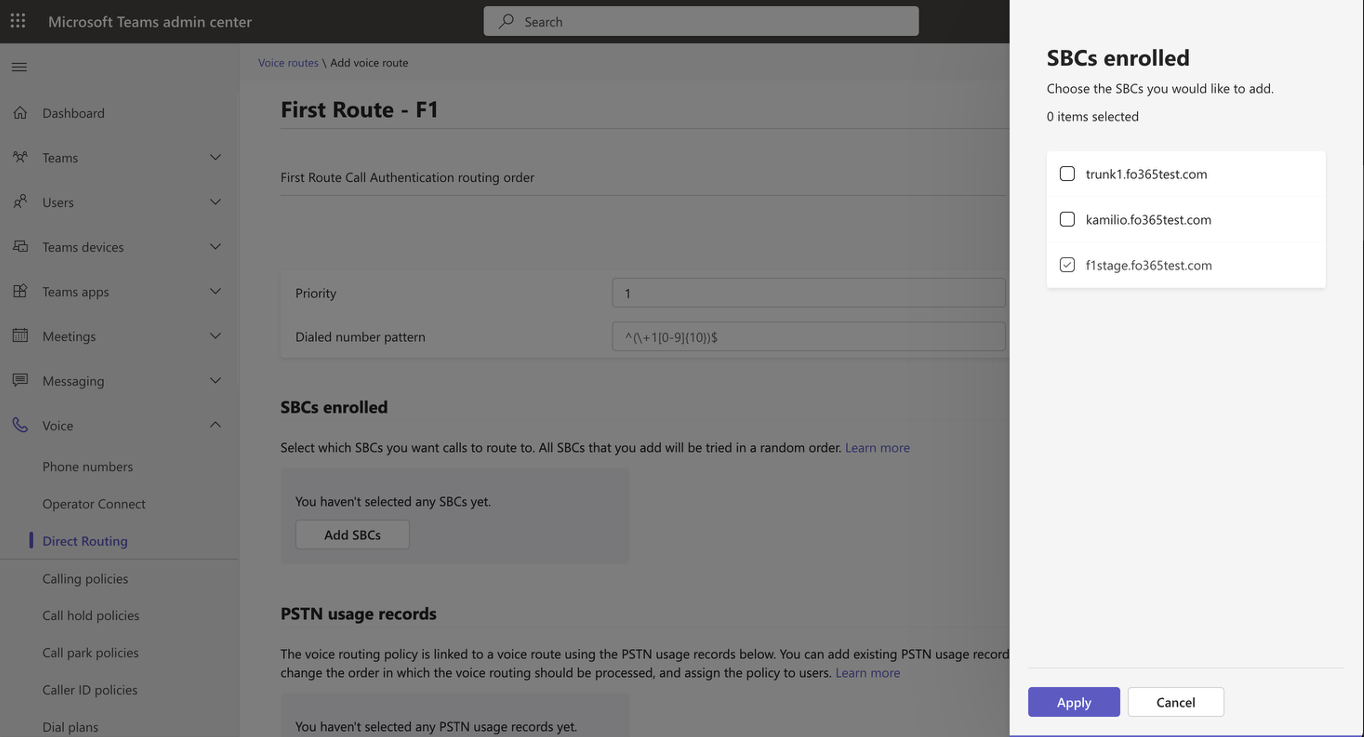
Click “Add SBCs”
-
Select created Call Authentication SBC from Direct Routing steps
-
Click "Save"
-
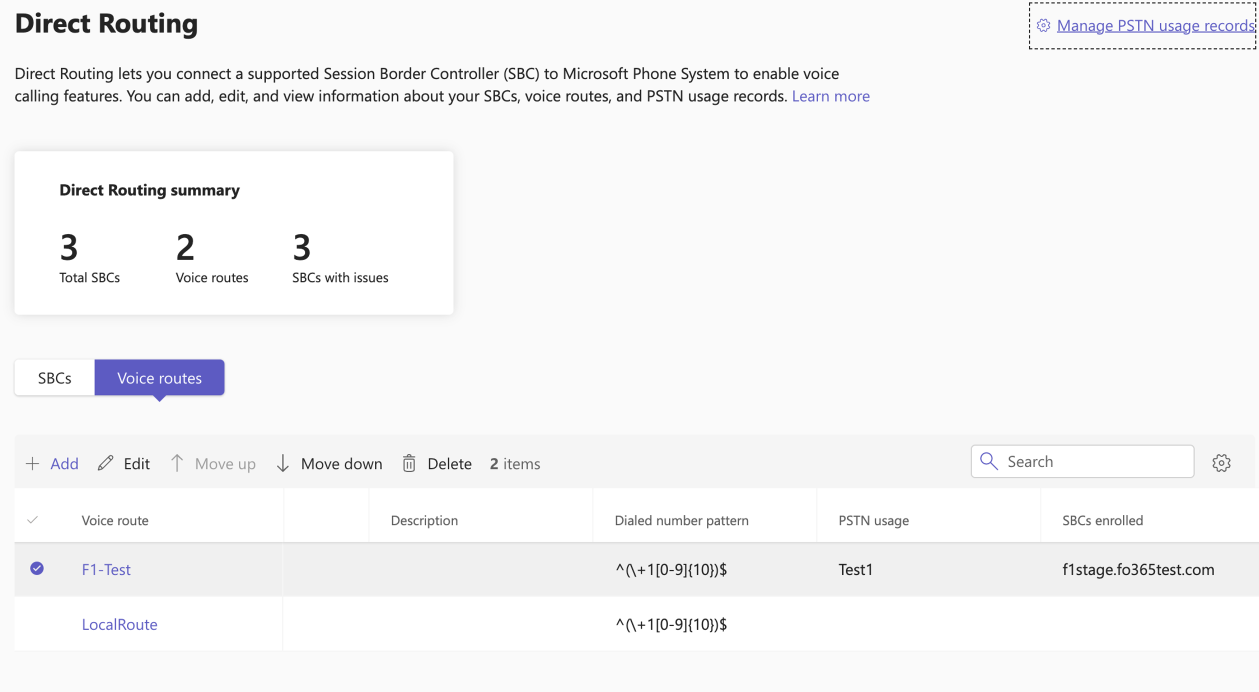
Confirm Voice Routes
- Note: Call authentication should have a higher priority than PSTN route.
-
Step 3: Make Test Phone Calls
Make test calls to confirm Branding.
Updated about 2 months ago
Did this page help you?