

RingCentral EX - Call Authentication
Pre-requisites
- Annual Contract Agreement with First Orion Branded Communications (Post paid)
- RingCentral EX enabled in First Orion account (See your First Orion contact for more information)
- Access to First Orion Customer Portal
- Vetted and Approved Business
- RingCentral developer portal access
Expectations
- Customer can facilitate changes to the RingCentral platform for configuration
- Access to RingCentral Developer portal to manage API credentials
- Thorough testing involving customer and First Orion
- Proper lead time to schedule “go live” between customer and First Orion Pre-Requisites
Notice!!
This integration is a collaborative effort between the client and First Orion. Please reach out to your First Orion contact to find out more information.
Step 1: Create Call Auth app in RingCentral
- In the RingCentral Developer Portal, navigate to the Console page.
- Click Register App
- Select REST API App the click Next
- Fill out the name and description
- Under the Auth section, select JWT Auth Flow
- Under Security add these permissions.
- Call Control, Read Call Log, Read Presence, WebSocket, WebSocket Subscriptions
- We will download this later
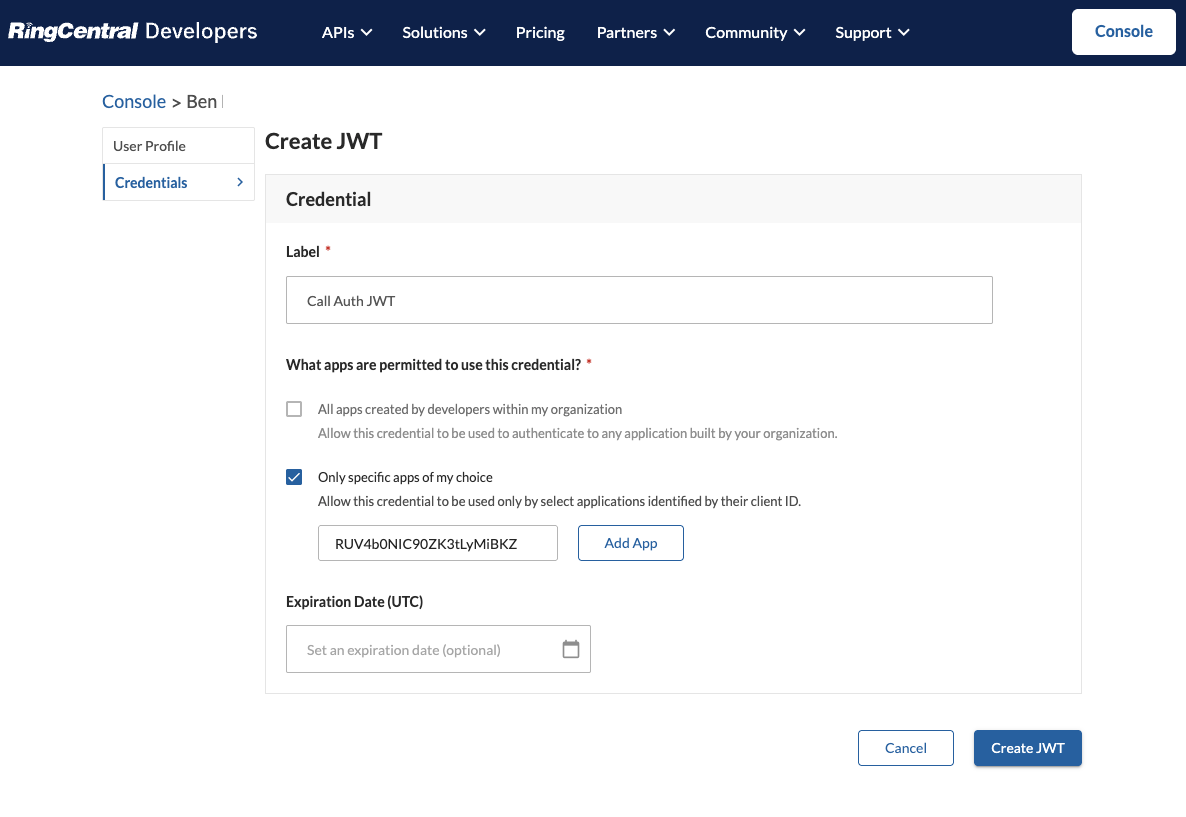
Step 2: Create JWT Credentials
This is different than the JWT in the app JSON file.
- Hover over the username in the top right and click Credentials.
- Click create a JWT and assign it to the Call Auth app that was just created.
- Save this JWT. It should also be in the JSON file in the next step.
Step 3: Save and Share Credentials with First Orion
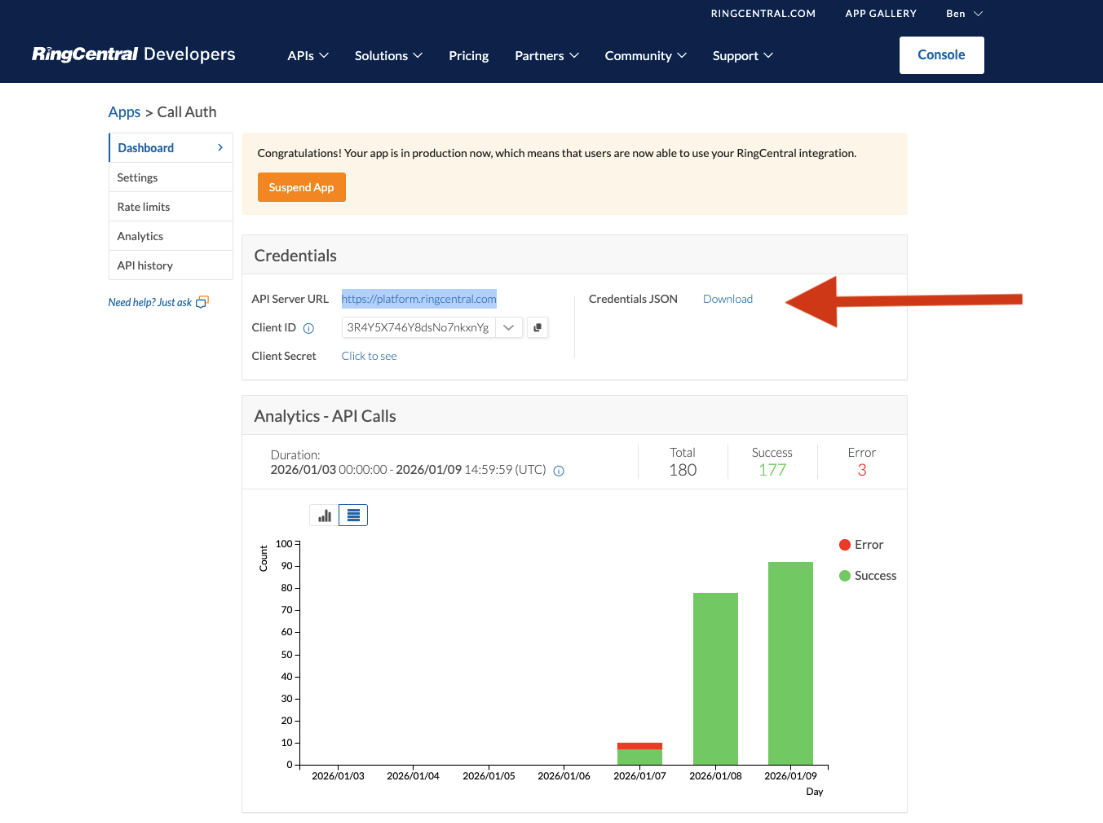
- In the Developer Portal, navigate to the Console page.
- Click on the App created earlier.
- Click Download next to Credentials JSON. This should contain the Client ID, Client Secret and the JWT generated in Step 2.
- Reach out to your First Orion contact to securely share these Credentials
Example Credential JSON File
{
    "clientId": "RUV4b0NIC90ZK3tLyMiBKZ",
    "clientSecret": "xUlxqagAakx7PsoDKaehsWsXm7Z01GH9mlQOgXrKpRWx",
    "server": "https://platform.ringcentral.com",
    "jwt": {
        "CallAuth JWT": "eyJrabvqVBa7kKWsyGMRfh46wl03S32YD6QbykGmtSFqRxViSZE140hrQ5dZkKmNZnNTfpWUZj4YyHqkwSuctg19o6F6KkBlXBLWN2sX1cV48SmB8mQZcUx64xgqyWc7oAga9IfYCdC4fKD3zsdsp0OArRBzt1UxW1Q3jnUEhewlJvinXtJbErDSvaEEyfSY721PJRzU8VCMwBEiUHqFJuu6gaLCsVycPOCyaLJq6lLyq8EZVX9B0DBKsXfGwxevk3kgqS9vHsZ4PbCJ7AGmPvXHceo7E7UjShxS55uyCf0tvqBLbdQW7uX3121QJW8x8rpzedxpOZpZuEy2IBB0G76xCrgZhEROAALr5kWKzYti5pP9sIJm6kFnVLHWDccTO0nTkmOHYw10VYASDrUSDiLMbtZHhZf2R9fsN6846YcVl0XJ2yAwzhn1khbrXeygzLgmEahyM7NTmd9a3o9wHL46B7ot3fUH6FrFFIcw7DIhRD6ygwfVVtRJppalXvY3sXssfdiiYYxVYUjpGkFHiixQIrXxnrit4KRvSmUafi4hRLwX2SiFfSChOTUWcTkyKClGSXD65DFrmxfFJRrBzyxBNTvxa3QisauQ4fJg7sBloQR1Je491tjsbxxKyKpSDphU09YJioJAxdxvTNLRGguRtHf4z6sEwsOVULV4NFN",
}
Step 4: First Orion connects your integration
In this step First Orion will take the shared credentials to finish setting up the RingCentral EX integration and notify you when it is ready. This may be done on a call with First Orion.
Step 5: Create Call Authentication Program
- See the Call Authentication Guide for detailed Program creation instructions.
- Add the RingCentral EX phone numbers into the Call Authentication Program.
Step 6: Make Phone Calls
Test phone calls from your RingCentral EX phone numbers that have been added to a Call Auth Program.
Troubleshoot Checklist
- Verify First Orion has enabled the RingCentral EX integration
- Create Call Authentication Program
- Add Phone numbers to Call Authentication Program
Updated 6 months ago
Did this page help you?