

Talkdesk - Call Authentication
Pre-requisites
- Annual Contract Agreement with First Orion Branded Communications (Post paid)
- Access to First Orion Customer Portal
- Vetted and Approved Business
- Talkdesk Trusted Calling enabled on the Talkdesk side.
- Talkdesk admin account
Note!
This feature applies to manual outbound calls only. For more information, please contact your Talkdesk representative.
Step 1: Verify Talkdesk Feature
This feature is available in Preview for selected accounts in the United States. Please reach out to your Talkdesk contact to verify access to this feature.
- See Talkdesks Official Guide here
Step 2: Collect API Keys
- API Keys can be generated in the First Orion Portal. See this guide for API Keys.
- Note: Save these for later.
Step 3: Create Call Authentication Program
- See the Call Authentication Guide for detailed Program creation instructions.
Step 4: Add Phone Numbers to Program
- If you did not add phone numbers when creating a Program, do that now.
Step 5: Enable Call Authentication in Talkdesk
-
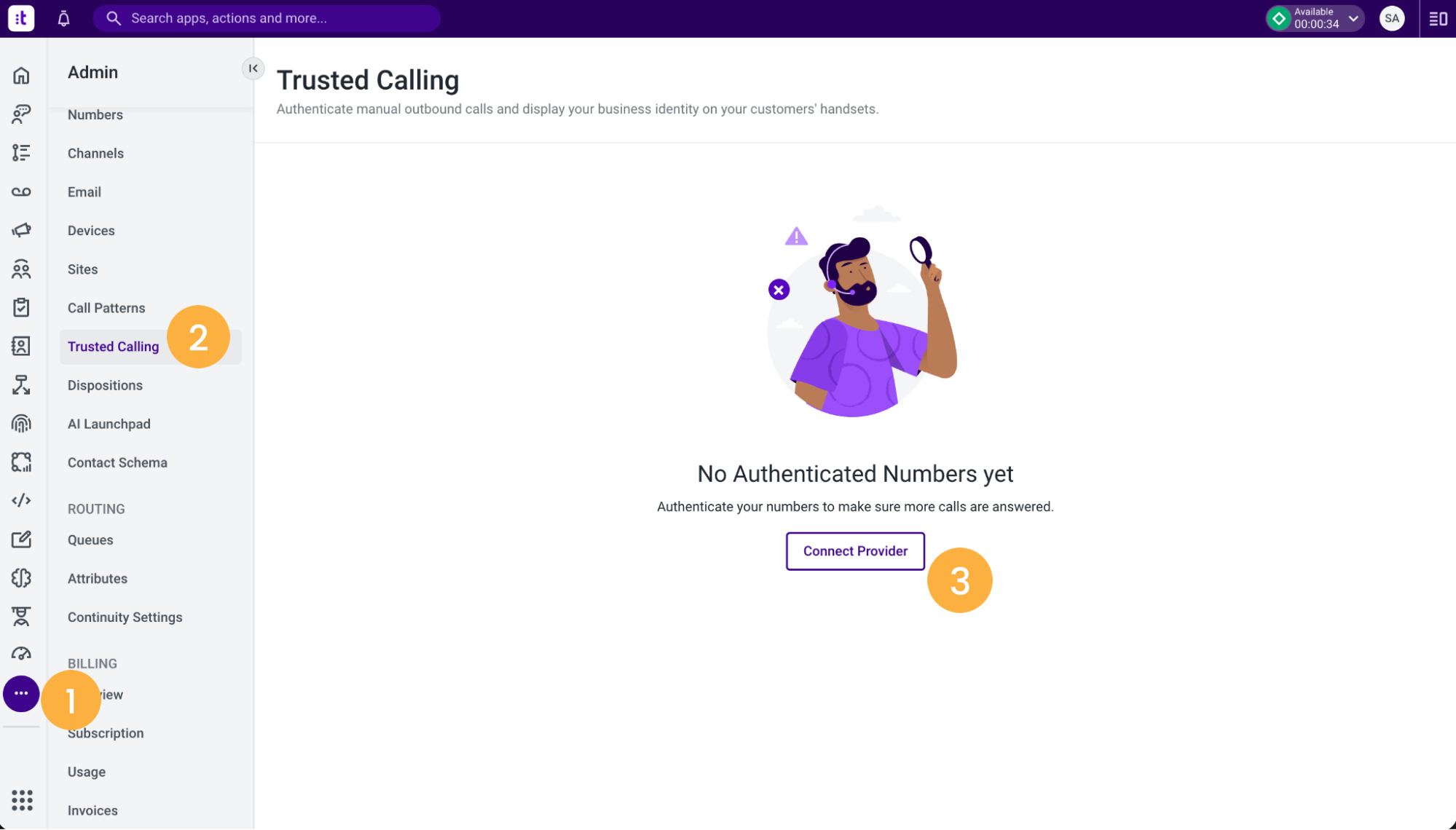
In the Talkdesk admin portal, navigate to Admin > Trusted Calling.
-
Click the Connect Provider Button.
-
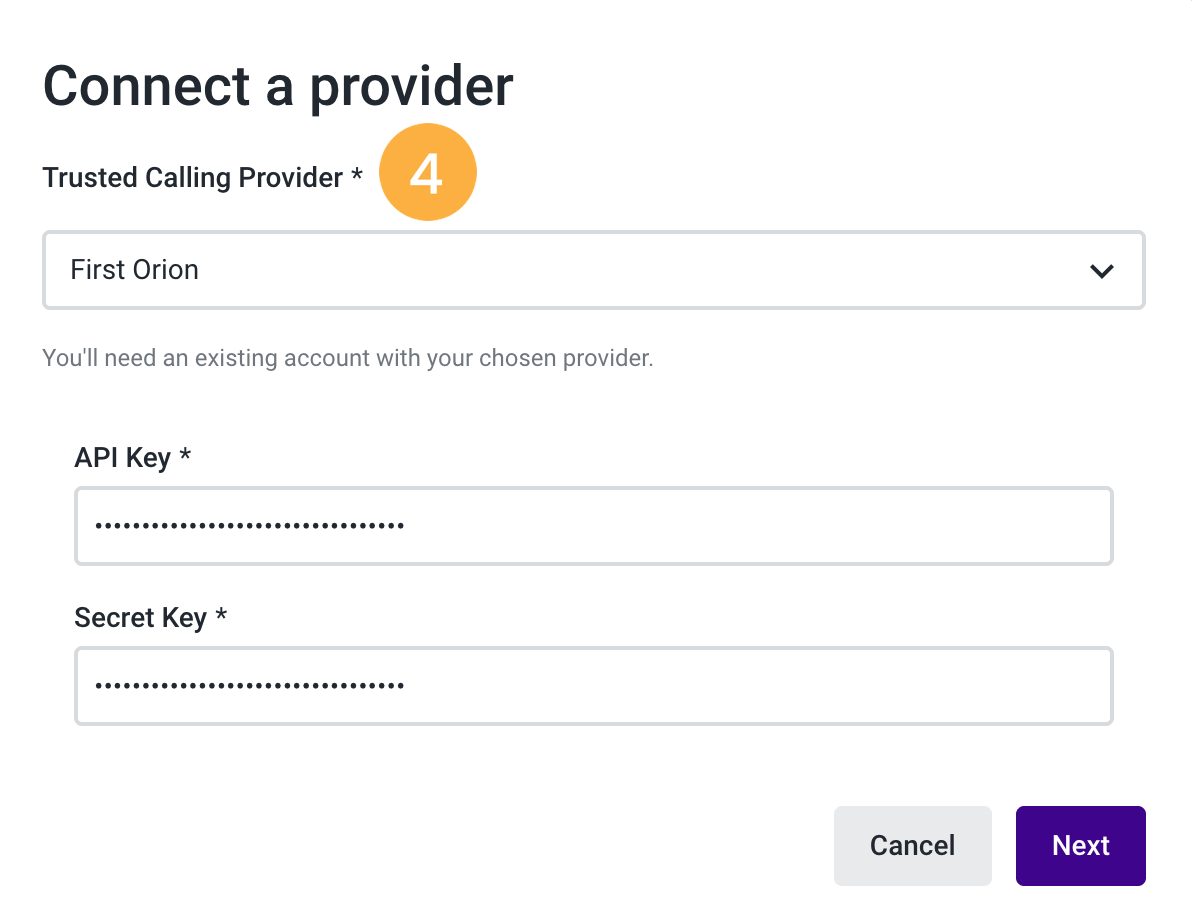
Select First Orion from the Trusted Calling Provider dropdown.
-
Enter the API and Secret Key that was saved earlier.
Step 6: Make Phone Calls
If your Talkdesk phone numbers are in a Call Authentication program and the Talkdesk Trusted Calling feature is enabled, the phone calls should be branding.
Troubleshoot Checklist
- Enable Talkdesk Trusted Calling in Talkdesk.
- Verify your First Orion API Key details are entered in Talkdesk.
- Verify Branding Program has Call Authentication.
- Verify needed Phone numbers are in a Call Authentication Program.
Updated 2 months ago
Did this page help you?